
After turning on the Basecamp all leds should turn green. In an unforseen event something might not immediately work as it should. To help indicate what is going wrong there are four leds on the Basecamps top.
Explanation of Basecamp LED Indicators
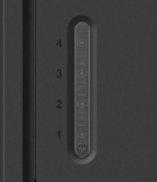
Note: Number 1 is on the outside of the Basecamp and number 4 is more in the middle.
1. Power LED
This LED indicates the power and battery status of the Basecamp. It shows whether:
- The device is receiving power
- The battery charging status (charging, full, or discharging)
- If there are any power-related issues (wrong adapter connected or battery charging problems)
|
Color |
Blinking |
Indication |
Action required |
|
|---|---|---|---|---|
|
off |
– |
No power, battery is empty or Basecamp switched off |
Connect power, press push button |
|
|
green |
no |
Power connected |
– |
|
|
orange |
no |
Power connected, battery error |
Contact support |
|
|
orange |
yes |
No power, battery discharging |
Connect power |
|
|
orange |
flash (short) |
Transport mode |
Hold button to fully power off |
|
|
red |
no |
Wrong adapter connected |
Reconnect power adapter send with Basecamp |
|
|
red |
yes |
Battery temperature or voltage error |
Check environment, if persistent contact support |
|
2. System LED
This LED shows the operational status of the Basecamp system itself. It indicates:
- If the system is on, off, starting up, or shutting down
- System errors such as overheating or boot failures
- Recovery mode status
|
Color |
Blinking |
Indication |
Action required |
|---|---|---|---|
|
off |
– |
System off |
Connect power, press push button |
|
green |
no |
System on |
– |
|
green |
yes |
System starting |
Wait for startup |
|
orange |
no |
System about to start |
Wait for startup, or press button to cancel startup |
|
orange |
yes |
System shutting down |
If unexpected, contact support |
|
red |
no |
System recovery mode |
Contact support |
|
red |
yes |
System disable due to battery error or failed to start multiple times |
Check enviroment, if persistent contact support |
3. Connection LED
This LED displays the network connectivity status of the Basecamp. It shows:
- Whether the device has a network connection
- If it's actively communicating over the network
- Internet connectivity status
- Connection to Guide-ID services
- Authentication or firewall issues
|
Color |
Blinking |
Indication |
Action required |
|---|---|---|---|
|
off |
– |
No connection (no IP address) |
Check Ethernet connection and DHCP server |
|
green |
no |
Connected (inactive) |
– |
|
green |
flash (1) |
Connecting |
Please wait for connection. This could take a minute |
|
green |
yes |
Connected (active) |
– |
|
orange |
no |
Internet (not connected to Guide-ID) |
Check firewall |
|
orange |
yes |
Configuration required |
Please wait for connection. This could take a minute. |
|
red |
no |
Error authenticating |
Contact support |
|
red |
flash (2) |
No internet, due to captive portal |
Check chosen WiFi network, login page is not supported |
|
red |
flash (3) |
No internet due to missing gateway |
Check network DHCP configuration |
|
red |
flash (4) |
No internet due to missing DNS |
Check network DHCP configuration |
|
red |
flash (5) |
No internet due to unkown reason |
Check internet connection or firewall |
4. Sync LED
This LED indicates the synchronization status with the Platform. It shows:
- If sync functionality is enabled or disabled
- Whether synchronization is currently running, scheduled, or completed
- If there were any errors during synchronization
- Status of updates being applied
|
Color |
Blinking |
Indication |
Action required |
|---|---|---|---|
|
off |
– |
Sync disabled |
Activate the Basecamp in the Platform |
|
green |
no |
Sync finished successfully |
– |
|
green |
yes |
Sync running |
– |
|
orange |
no |
Sync scheduled |
Wait for scheduled sync, or press button “Sync Now” in the Platform |
|
orange |
yes |
Basecamp updating |
Wait for update to complete |
|
red |
no |
Sync finished with errors |
Contact support |
Together, these four LEDs provide a comprehensive overview of the Basecamp's operational status, from power supply to system operation to network connectivity to data synchronization.