Setting Up AV-Sync
This guide walks you through the complete process of setting up AV-Sync to synchronize audio with video displays in your exhibit.
Step 1 — Process your video files
Section titled “Step 1 — Process your video files”- Download the AV-Sync Video Tool (Windows)
- Load your original video file into the tool
- The tool generates two outputs:
- A video file with an embedded timecode track
- A separate audio file for the Guide-ID platform
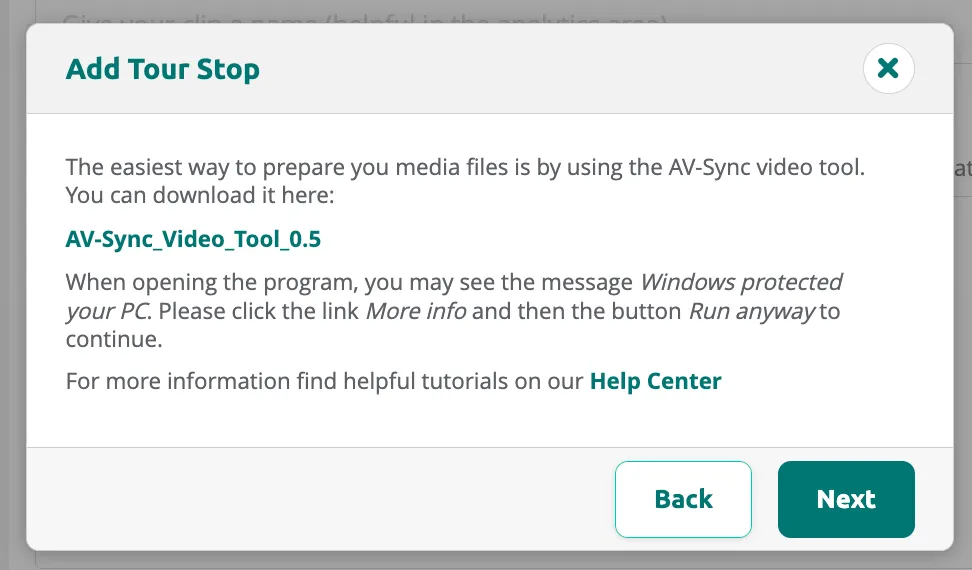
Once your files are ready, create an AV-Sync stop in the Tour Editor. Click Add Stop and select Audiovisual Sync Tour Stop as the stop type. The dialog also provides a download link for the AV-Sync video tool.
After creating the stop, it appears in the stop list with a video camera icon to distinguish it from regular audio stops.

Step 2 — Assign a video code
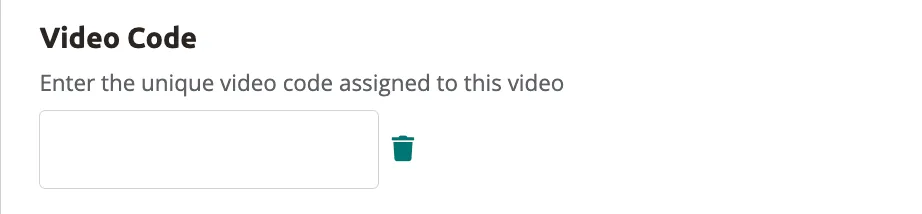
Section titled “Step 2 — Assign a video code”Each video requires a unique identifier starting with A1 (for example, A101 or A102). Enter this code in the Video Code field of the AV-Sync stop.
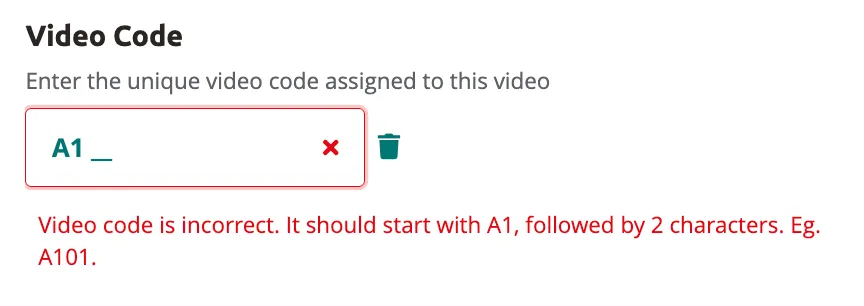
If the code does not follow the correct format, a validation error is displayed. The code must start with A1, followed by exactly two characters (for example, A101).
Step 3 — Configure the platform
Section titled “Step 3 — Configure the platform”- Upload the audio file to a dedicated AV-Sync stop in the Guide-ID platform
- Pair the stop with the corresponding video code
- Assign the correct beacon identifier to the stop
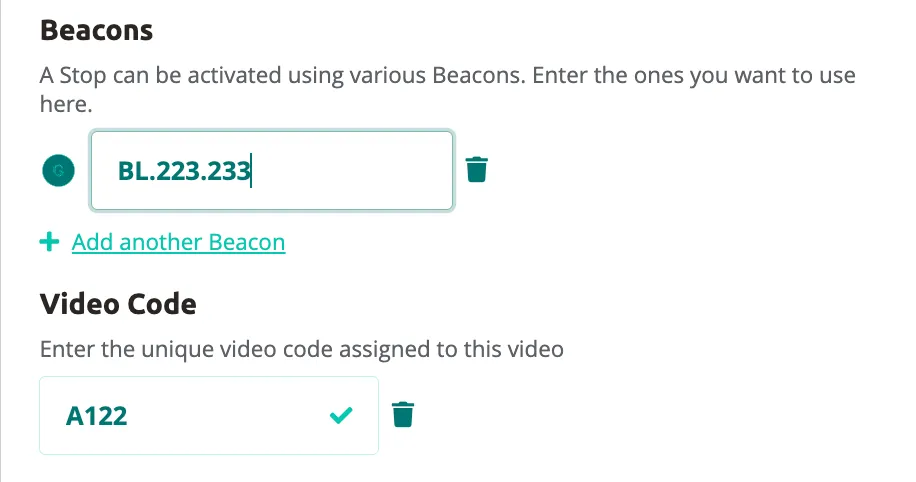
When a beacon is assigned and the video code is valid, a green checkmark confirms the configuration is correct.
Step 4 — Connect the hardware
Section titled “Step 4 — Connect the hardware”- Connect the Brainbox to the media player’s audio output via a 3.5 mm audio jack
- Power the Brainbox through USB-C
- Set the media player volume to 30–40% (recommended)
Step 5 — Calibrate and test
Section titled “Step 5 — Calibrate and test”- Press the switch button on the Brainbox to start Auto Gain calibration
- Wait for calibration to complete
- Test with a Podcatcher Pro to verify audio synchronization
LED indicator reference
Section titled “LED indicator reference”| LED state | Meaning |
|---|---|
| Green blinking | System functioning correctly |
| Solid orange | Auto Gain calibration in progress |
| Red blinking | Audio detected but timecode signal missing |
| Off | No audio signal detected |
Related articles
Section titled “Related articles”- Understanding AV-Sync — how AV-Sync works
- AV-Sync Using BrightSign Plugin — alternative timecode method
- Understanding the Brainbox — learn about the Brainbox hardware