Hardware
Installing Your Basecamp
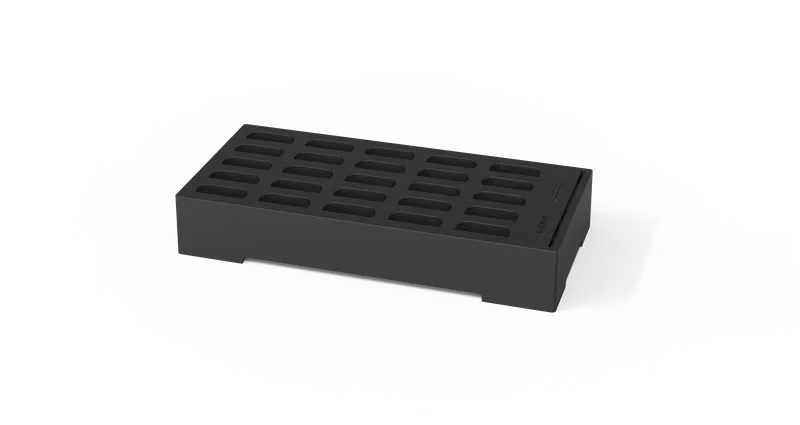
The Basecamp is the central hub for your Podcatcher Pro devices: it charges them and syncs tour content. A careful installation keeps syncing reliable and device management simple.
Prerequisites
Section titled “Prerequisites”Before installation, you will need:
- The Basecamp with its 65 W USB-C power adapter
- An Ethernet cable (recommended) or a 2.4 GHz Wi-Fi network with a WPA2 passphrase — 5 GHz networks are not supported
- A power outlet nearby
- Access to the Platform
- The serial number (e.g.
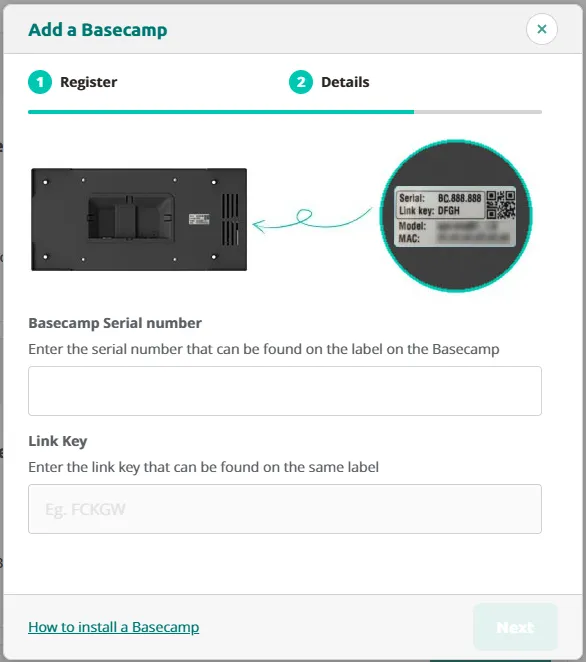
bc000123) and the link key, both printed on the label on the underside of the Basecamp, next to the Ethernet and power connectors
Step 1 — Select the location
Section titled “Step 1 — Select the location”- Accessibility — staff must be able to insert and remove Podcatcher Pro devices easily
- Network — a wired connection is preferred; Wi-Fi is the fallback
- Power — near a reliable outlet
- Environment — clean and dry, ambient temperature 0–40 °C, altitude up to 2000 m. Never cover the ventilation openings on the top and underside.
Step 2 — Mount or place the Basecamp
Section titled “Step 2 — Mount or place the Basecamp”Wall mounting
Section titled “Wall mounting”The Basecamp is fixed with four 5 × 70 mm mounting screws; the screw positions are on the underside of the unit.
- Mark the four screw positions on the wall
- Make sure the wall and anchors can carry the Basecamp with up to 25 docked Podcatcher Pro devices
- Drill and insert wall anchors where needed
- Fix the Basecamp with the four screws and check that it is level
Desktop placement
Section titled “Desktop placement”- Choose a stable, level surface. The footprint is 38.2 × 18.2 cm, height 6.5 cm
- Keep the ventilation openings on the top and underside free
- In busy areas, secure the unit to the surface
Step 3 — Connect power and network
Section titled “Step 3 — Connect power and network”- Connect the 65 W power adapter to the USB-C power input
- Plug the adapter into a surge-protected outlet
- The Power LED (LED 1) turns steady green
Wired connection (recommended)
Section titled “Wired connection (recommended)”- Connect the Ethernet cable to the RJ-45 port on the Basecamp
- Connect the other end to your network switch or wall outlet
- The Connection LED (LED 3) flashes green while the Basecamp contacts Guide-ID and turns steady green once it is online
Wireless connection
Section titled “Wireless connection”- Wait for the hotspot — with no Ethernet link, the Basecamp starts its own Wi-Fi hotspot one to two minutes after power-on. While the hotspot is active, the Connection LED blinks orange.
- Find the network — on a phone or laptop, look for a Wi-Fi network named after the Basecamp’s serial number (e.g.
bc000123) - Connect — the password is
podcatcher - Open the configuration page — a login pop-up appears automatically. If it does not, browse to
http://192.168.42.1 - Select your network — choose your venue’s Wi-Fi under Select SSID, enter the Passphrase and click Connect
The Connection LED turns steady green when the Basecamp is online. If the configured network later becomes unreachable, the hotspot re-appears automatically so you can reconfigure.
Step 4 — Register your Basecamp
Section titled “Step 4 — Register your Basecamp”- Log in to the Platform
- Go to Hardware → Basecamps
- Click Add new Basecamp (Add Basecamp if it is your first one)
- Enter the serial number and link key from the label on the underside
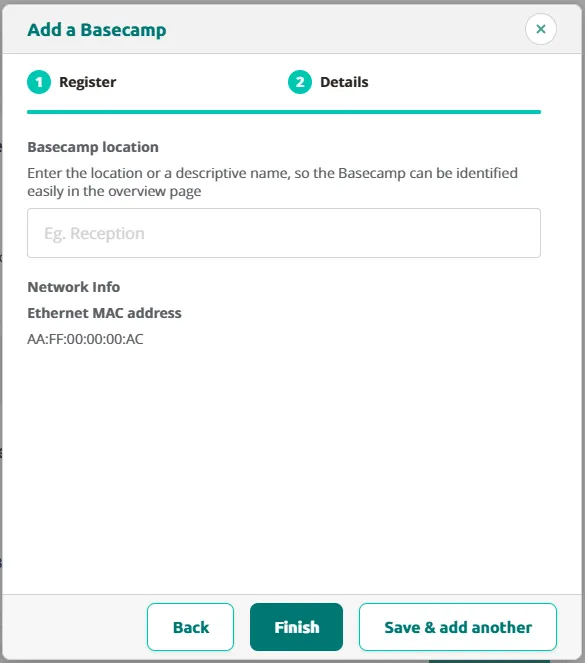
- Enter a Basecamp location, review the Network Info (the Ethernet and Wi-Fi MAC addresses — useful if your network uses MAC filtering) and click Finish, or Save & add another to register the next Basecamp
Troubleshooting
Section titled “Troubleshooting”| Issue | Possible cause | Solution |
|---|---|---|
| No Power LED | Adapter not connected | Check the power connections |
| Power LED steady red | Charger does not deliver USB Power Delivery 20 V | Use the supplied 65 W adapter |
| Connection LED blinks orange | No Ethernet and Wi-Fi not configured yet | Follow the wireless steps above |
| Connection LED steady orange | Internet works, but Guide-ID cannot be reached | Check the firewall — see Network Requirements |
| Basecamp not in the Platform | Registration incomplete or device offline | Re-enter the serial number and link key; wait up to 35 minutes |
| Podcatcher Pro not charging | Not seated properly or dirty contacts | Clean the contacts and reinsert |
- Route power and network cables with cable ties
- Put a physical label on each Basecamp matching its location name in the Platform
- Larger venues: install several Basecamps close to where devices are handed out and returned
Related articles
Section titled “Related articles”- Basecamp Overview — manage and monitor your Basecamps
- LED Indication Basecamp — understand the four status LEDs
- Network Requirements — connectivity prerequisites
Was this article helpful?