Editing Clips and Clip Settings
Configure individual clips with audio, text, media, and playback settings to create a polished visitor experience.
Open clip settings
Section titled “Open clip settings”- Hover over a clip in the Clipflow and click the pencil icon — or double-click the clip — to open its settings. A stop that has only one clip opens in the clip settings straight away.
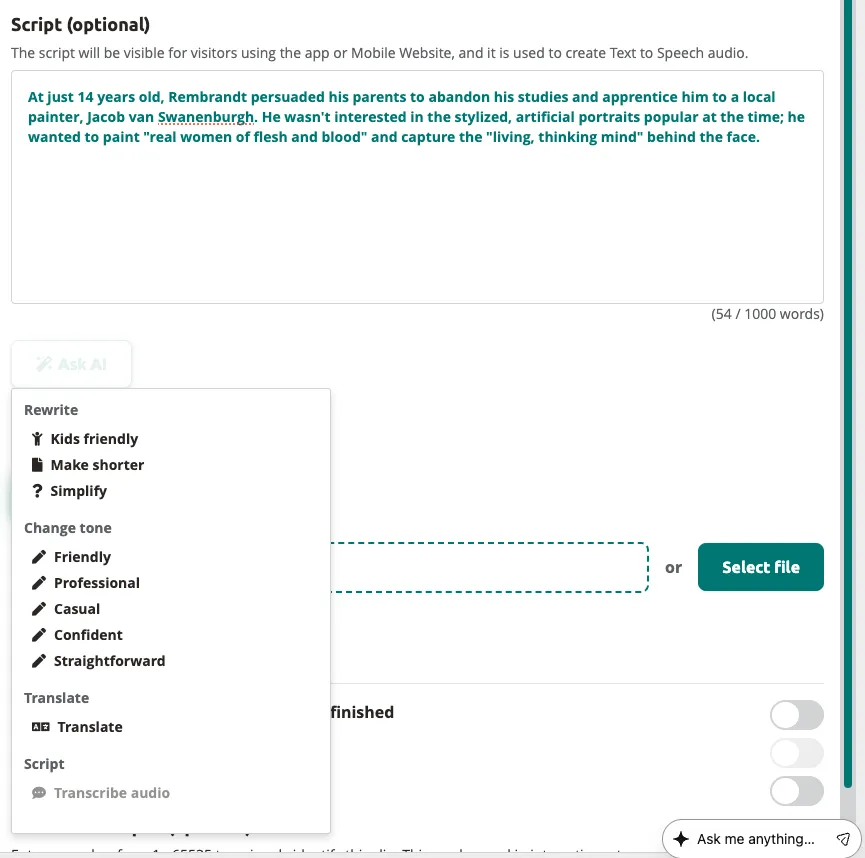
The clip settings replace the Clipflow in the editor — they are not a side panel, so the tree disappears while you edit. Click Open clip view at the top right to bring the Clipflow back. The tabs are your tour languages (with a pill tab per language variant if the tour uses variants); script, audio, media, and settings sit below one another inside the selected language tab.
Add clip content
Section titled “Add clip content”- Enter your script text in the Script field.
This text serves as the narration script for the clip. You can use it as a reference for voice-over recording or as input for Text-to-Speech.
Generate audio with Text-to-Speech
Section titled “Generate audio with Text-to-Speech”-
Click
Text to Speechbelow the content field. -
Review the script in the Script field. Edit it if needed — the Text-to-Speech engine reads exactly what is written here.
-
Select a voice from the voice dropdown.
-
Click
Generateto create the audio file. -
Preview the generated audio by clicking the play button. If the result is not satisfactory, adjust the script and click
Generateagain.
Add media
Section titled “Add media”-
Scroll to the Media section in the clip settings panel.
-
Upload an image by dragging it into the drop zone or clicking
Select file. -
Upload a video file if your tour supports video content on the target device.
Configure clip settings
Section titled “Configure clip settings”- Scroll to the Settings section of the clip panel.

- Toggle Automatically replay this clip when it is finished on or off. When enabled, the clip loops back to the beginning after playback completes.
Set up scoring
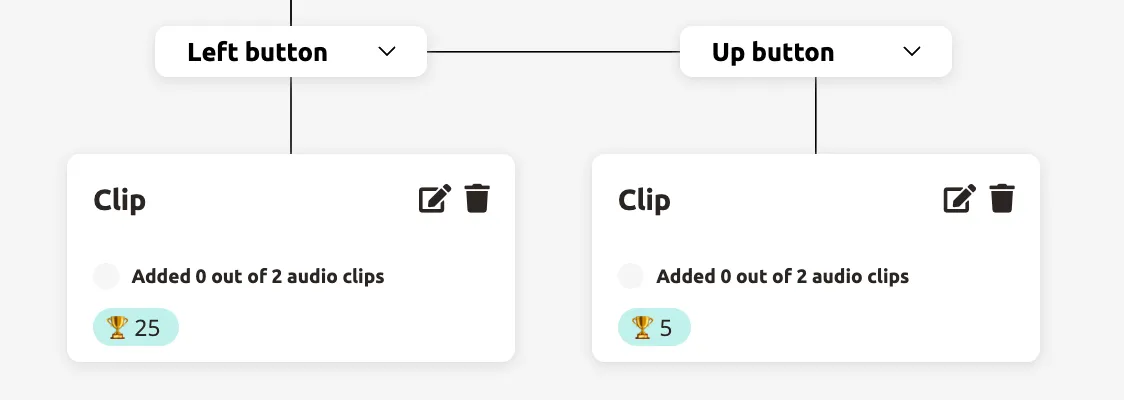
Section titled “Set up scoring”- Toggle Enable scores to assign point values to clips. Select a score value (5, 10, or 25) from the dropdown.


Clips with scores show a trophy badge in the Clipflow, making it easy to see point values at a glance.
- On the last clip of a scored branch, toggle Display Score on LED Ring. This turns that clip into a Score Clip: the visitor sees their final result on a podium, and the LED ring on the Podcatcher Pro turns green, orange, or red based on the score ranges configured in Tour Settings.

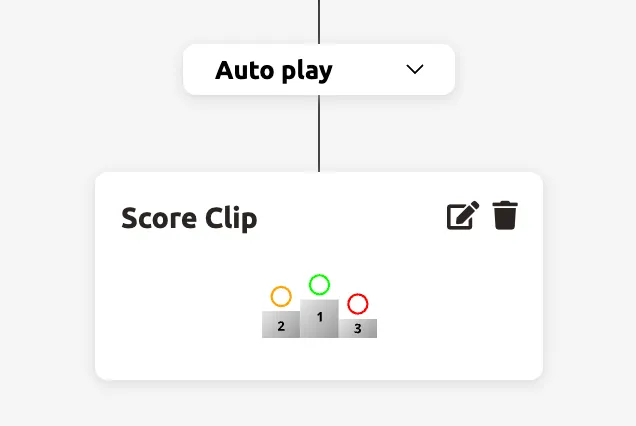
A Score Clip cannot carry a score of its own, loop, or replay the previous clip — the toggle is unavailable on clips that do.
Configure connections
Section titled “Configure connections”Connections are not part of the clip settings panel — you create and change them in the Clipflow itself.
-
If you are in the clip settings, click
Open clip viewat the top right to return to the Clipflow. -
Hover over a clip in the Clipflow. Two + buttons fade in: one below the clip and one to its right. They stay invisible until the pointer is over the clip.
-
Click the + below the clip to add a clip one level deeper, or the + on its right to add a sibling branch at the same level.
-
Click the connection-type label on the connection between two clips and pick a type from the dropdown — Auto play, Left / Up / Right / Down button, or Randomize. See Using the Tour Editor for what each type does.
The clip settings panel does hold two connections of its own, each with its own connection-type dropdown once switched on: Automatically replay this clip when it is finished (step 12) and Allow the visitor to replay the previous audio clip.
Your clip is now configured with content, audio, media, and the right playback settings. Repeat these steps for each clip in your Clipflow to complete your tour stop.
Next: Adjusting Tour Settings
Related articles
Section titled “Related articles”- Using the Tour Editor — build branching Clipflows
- Text-to-Speech — generate audio from scripts
- Adjusting Tour Settings — configure scoring ranges and devices
- Adding Content to a Tour — manage stops and translations