Text-to-Speech
The text-to-speech functionality in the platform allows you to convert written text into clear, natural-sounding audio.
Using Text-to-Speech
Section titled “Using Text-to-Speech”-
Open a Stop: Start by opening a stop within your existing or new tour. This is where you will use the text-to-speech functionality.
-
Fill in the Script Field: In the “script” field, add the desired text. This can range from a few sentences to a more extensive text with a maximum of 1000 words (you’ll see a warning from 800 words). Ensure that the text is clear and well-structured for the best results.
-
Choose “Text to Speech” under Audio: Under the “audio file” section, select the “text to speech” option.
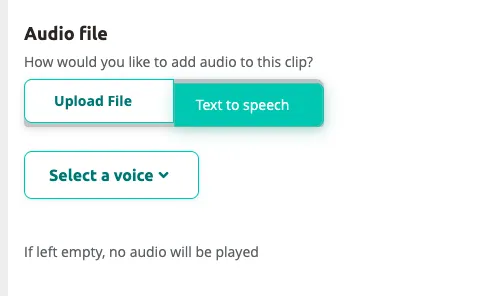
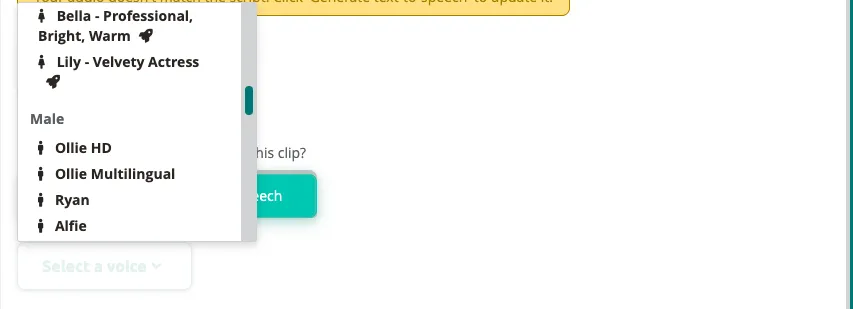
- Select a Voice: Click the voice dropdown to browse available voices, categorized by gender (male, female, neutral). Not all languages have multiple voices per gender.
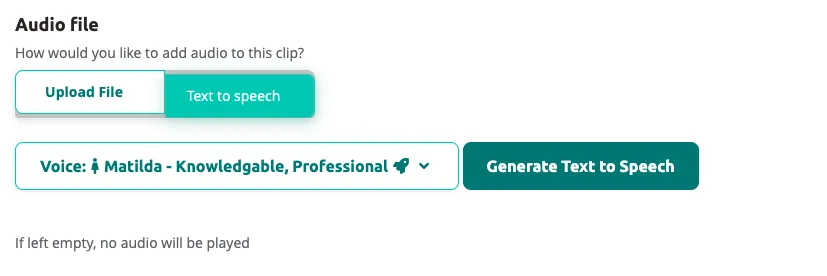
- Generate the audio: After selecting a voice, click
Generate Text to Speechto create the audio file.
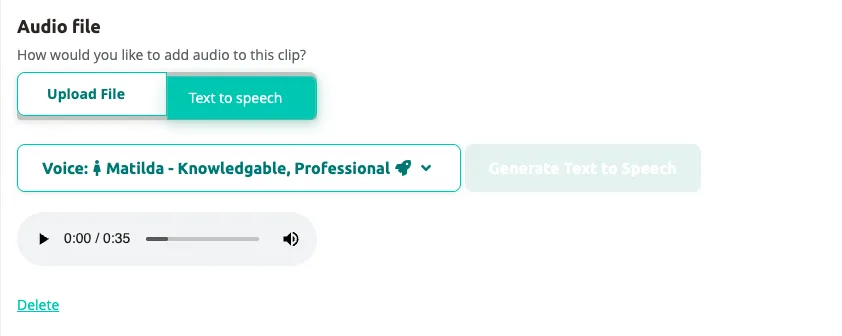
- Preview: Click the play button to hear the generated audio. If the result is not satisfactory, adjust the script and regenerate.
Tips and Tricks
Section titled “Tips and Tricks”-
Choose a Clear and Natural Writing Style: For optimal results with text-to-speech, use clear and natural language. Avoid complex sentences and jargon that may be difficult to pronounce or understand. This ensures a smoother and more understandable speech output.
-
Use Pauses and Intonation: Utilize punctuation such as commas and periods to create natural pauses in speech. This helps make the text more understandable and gives a more human rhythm to the speech. Intonation marks can also assist in conveying the correct emphasis and emotion.
-
Select the Right Voice: Choose a voice that aligns with the atmosphere and purpose of your tour. Different voices can convey different emotions and characters.
-
Adjust Spelling on a Word Basis: Use phonetic spelling to adjust the pronunciation of difficult-to-pronounce or unusual words. This helps text-to-speech systems pronounce these words correctly.
-
Test and Revise: Always listen to a preview of the text-to-speech output before publishing. This gives you the opportunity to identify and adjust any unnatural-sounding sentences or words. Feedback from colleagues or test users can also be valuable in improving the overall quality and effectiveness of the speech output.
Related articles
Section titled “Related articles”- Editing Clips and Clip Settings — manage audio clips in your tour
- Generate Content Using AI — AI-powered script generation