How-to guide
Publishing a Tour
Publishing a tour makes the latest version available to visitors. Any changes made in the Tour Editor remain invisible to Podcatcher Pro users and other devices until published.
Publishing States
Section titled “Publishing States”A tour shows one of these states:
- Tour has never been published: The tour has not yet been made available.
- Tour is unpublished: The tour was published before but is currently not accessible to visitors.
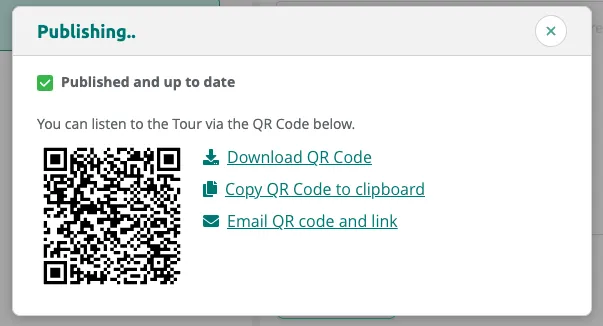
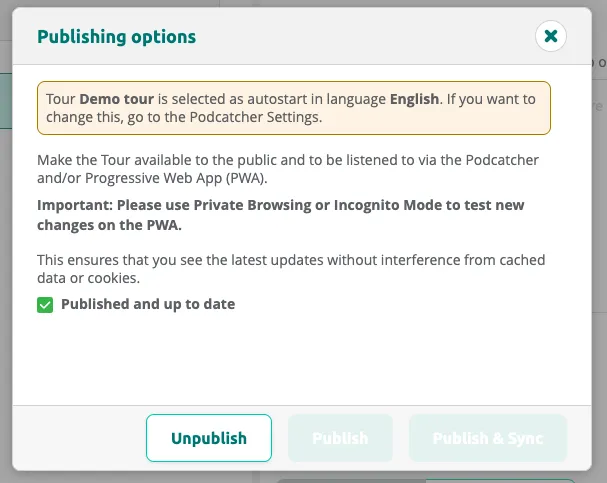
- Published and up to date: The current content is live and matches what visitors receive.
- Tour has changed since it was last published: The tour has been modified since the last publish — republish to push the changes.
How to Publish
Section titled “How to Publish”-
Navigate to your tour and locate the Publishing options button in the top-right of the tour page.
-
Click this button to open the publishing dialog.
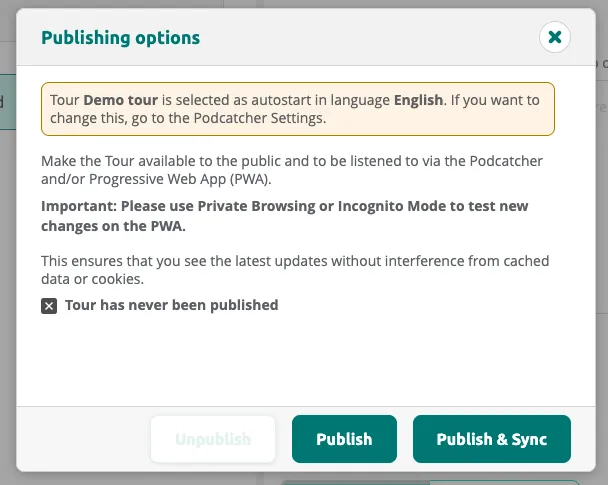
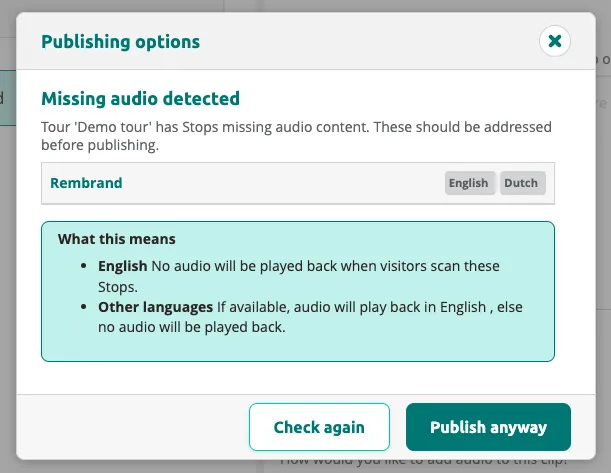
- If the tour has stops with missing audio, the dialog warns you before publishing. You can choose to fix the issues or publish anyway.
- Click
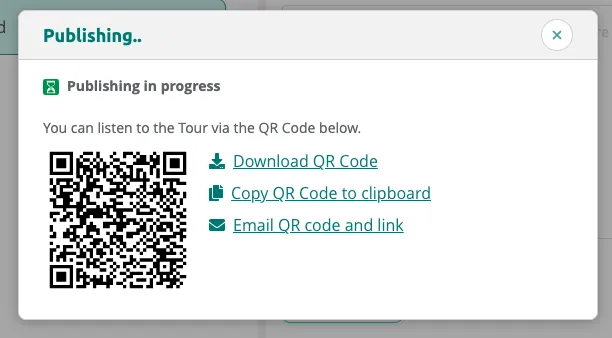
PublishorPublish & Syncto start publishing. The dialog shows a QR code you can use to test the tour on the PWA.
- Once publishing is complete, the status changes to Published and up to date.
Viewing Tour Status
Section titled “Viewing Tour Status”After publishing, the dialog confirms the tour is up to date. You can unpublish the tour at any time to make it unavailable to visitors.
Synchronization Note
Section titled “Synchronization Note”For Podcatcher Pro devices, synchronization is required after publishing so they receive the latest content and updates. This synchronization is typically scheduled after opening hours.
Related articles
Section titled “Related articles”- Adjusting Tour Settings — change devices, languages, and scoring
- Activate PWA — enable mobile web access for your tour
- Tips and Tricks — complete tour checklist before going live
- Hardware Management — monitor sync and device status
Was this article helpful?