Platform
Podcatcher Settings
Configure sound, LED brightness, alarm, and autostart behavior for all Podcatcher Pro devices connected to your site.
Accessing Podcatcher settings
Section titled “Accessing Podcatcher settings”-
Go to Site Settings in the Platform.
-
Click
Podcatcherin the sidebar.
Sound volume
Section titled “Sound volume”-
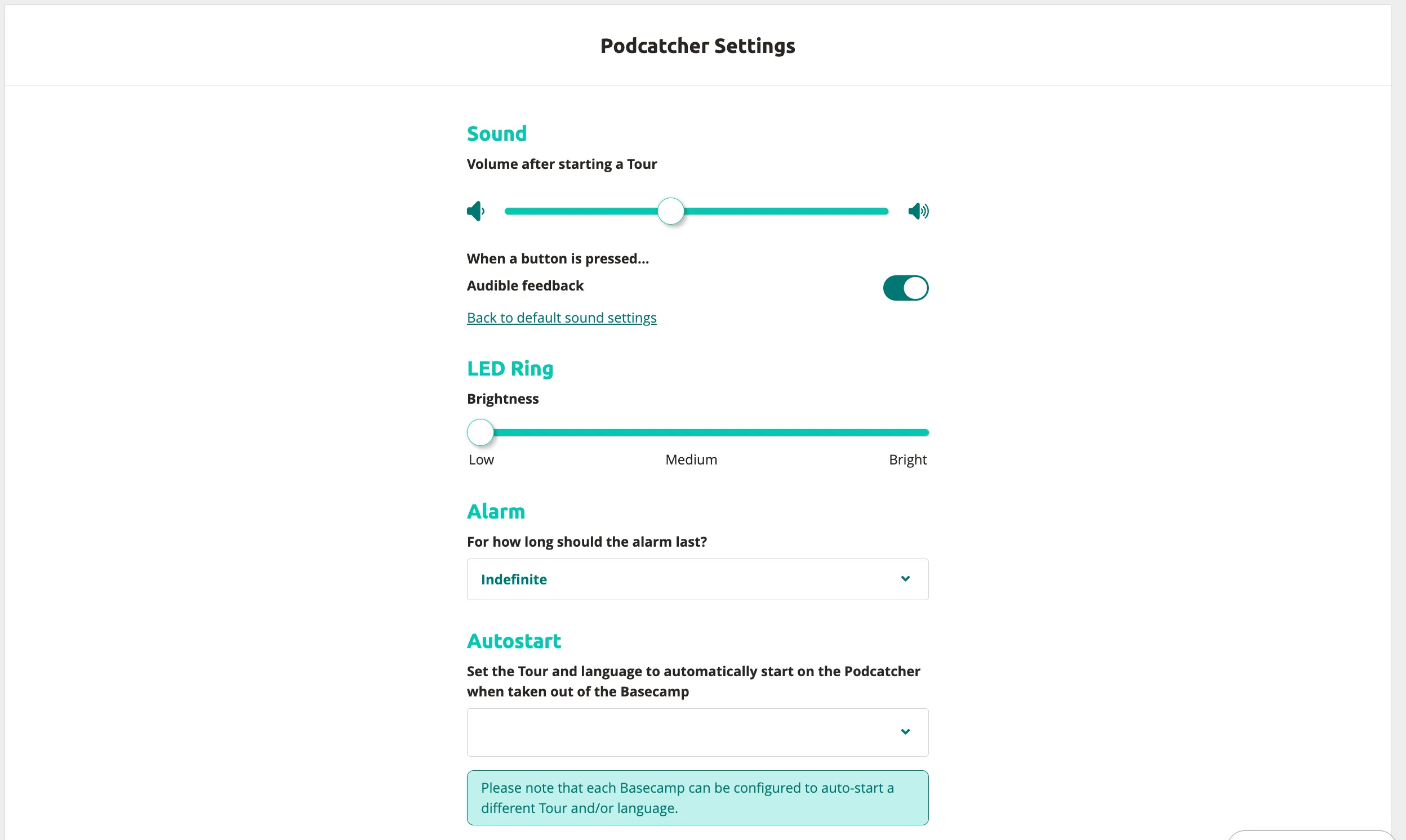
Adjust the Volume after starting a Tour slider to set the default volume level for all devices.
-
Toggle Audible feedback on or off. When enabled, the Podcatcher Pro plays a confirmation sound when a button is pressed.
-
Click Back to default sound settings to reset all sound options to their defaults.
LED Ring brightness
Section titled “LED Ring brightness”- Adjust the LED Ring Brightness slider to set the desired level:
| Position | Label |
|---|---|
| Left | Low |
| Center | Medium |
| Right | Bright |
- Configure the Alarm duration using the dropdown menu. This sets how long the alarm should last when triggered (e.g. “Indefinite” keeps the alarm active until the Podcatcher Pro is moved away).
For full details on setting up alarms, see Configuring Alarms.
Autostart
Section titled “Autostart”- Set a tour and language to automatically start when a visitor picks up a Podcatcher Pro. When autostart is enabled, the selected tour begins playing without any interaction from the visitor.
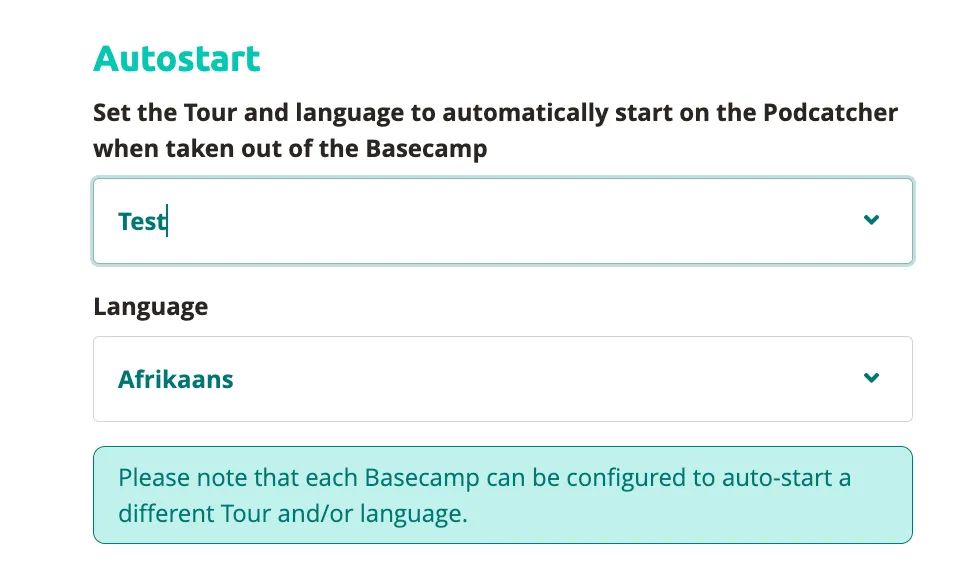
For more information, see Setting Up Autostart.
Saving and applying changes
Section titled “Saving and applying changes”- Click
Saveto store your changes.
Your Podcatcher Pro settings are now updated and will apply to all devices after the next sync.
Related articles
Section titled “Related articles”Was this article helpful?