Brainbox Serial Protocol Reference
The Brainbox receives data from Podcatcher devices over BLE and exposes it as CSV frames on a USB serial connection. Interactive installations, kiosks, and custom software can read these frames to react to visitor actions in real time.
Physical connection
Section titled “Physical connection”| Parameter | Value |
|---|---|
| Interface | USB Serial (CDC) |
| Line delimiter | \r\n (CR+LF) |
| USB Vendor ID | 0x2dcf |
| USB Product ID | 0x6003 |
Connect the Brainbox to a computer via USB. It appears as a standard serial (COM) port — no special drivers are required on modern operating systems.
Console commands
Section titled “Console commands”After opening the serial port, activate the Brainbox console and enable the frame types you need:
<CR> ← send a carriage return (0x0D), wait 300 msconsole tracking 1<CR> ← enable Tracking V2 frames, wait 200 msconsole interactive 1<CR> ← enable Interactive V1 frames, wait 200 msversion<CR> ← response: "version: 2.5.1"Available commands
Section titled “Available commands”| Command | Function |
|---|---|
console tracking 1 | Enable Tracking V2 output |
console tracking 0 | Disable Tracking V2 output |
console interactive 1 | Enable Interactive V1 output |
console interactive 0 | Disable Interactive V1 output |
console syncdock 1 | Enable Basecamp frames (not yet in firmware — see AVS-147) |
version | Query firmware version |
help | List all available commands |
Content structure in the CMS
Section titled “Content structure in the CMS”To understand the frame data, it helps to know how content is organized in the Guide-ID CMS:
Site └── Tour └── Stop └── Clip (audio file + optional Interactive Clip Id)- A site has one or more tours
- A tour contains one or more stops
- A stop contains one or more clips — a clip is the actual content, typically with an audio file linked to it
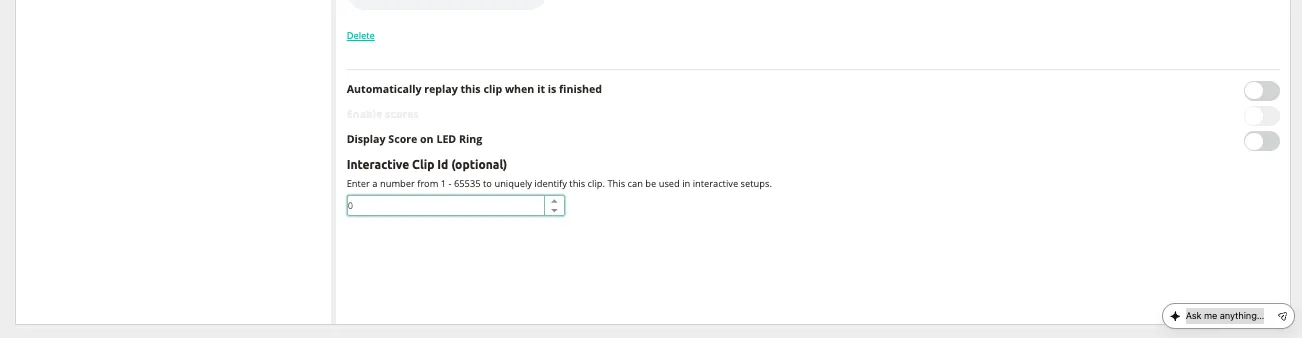
- Each clip has an optional Interactive Clip Id (1–65535) that uniquely identifies it for interactive setups
The clipIdUser value in the frames below corresponds to this Interactive Clip Id. You configure it per clip in the CMS under the clip settings.
How clips get triggered
Section titled “How clips get triggered”A clip starts playing on the Podcatcher in one of these ways:
- Beacon scan — the visitor manually scans a beacon at a stop
- UWB auto-trigger — the visitor enters a zone and the Podcatcher triggers automatically based on proximity (UWB distance)
- Clip flow navigation — the visitor presses buttons (Up, Down, Left, Right) to navigate through the clip flow within a stop (e.g. choice clips with multiple branches)
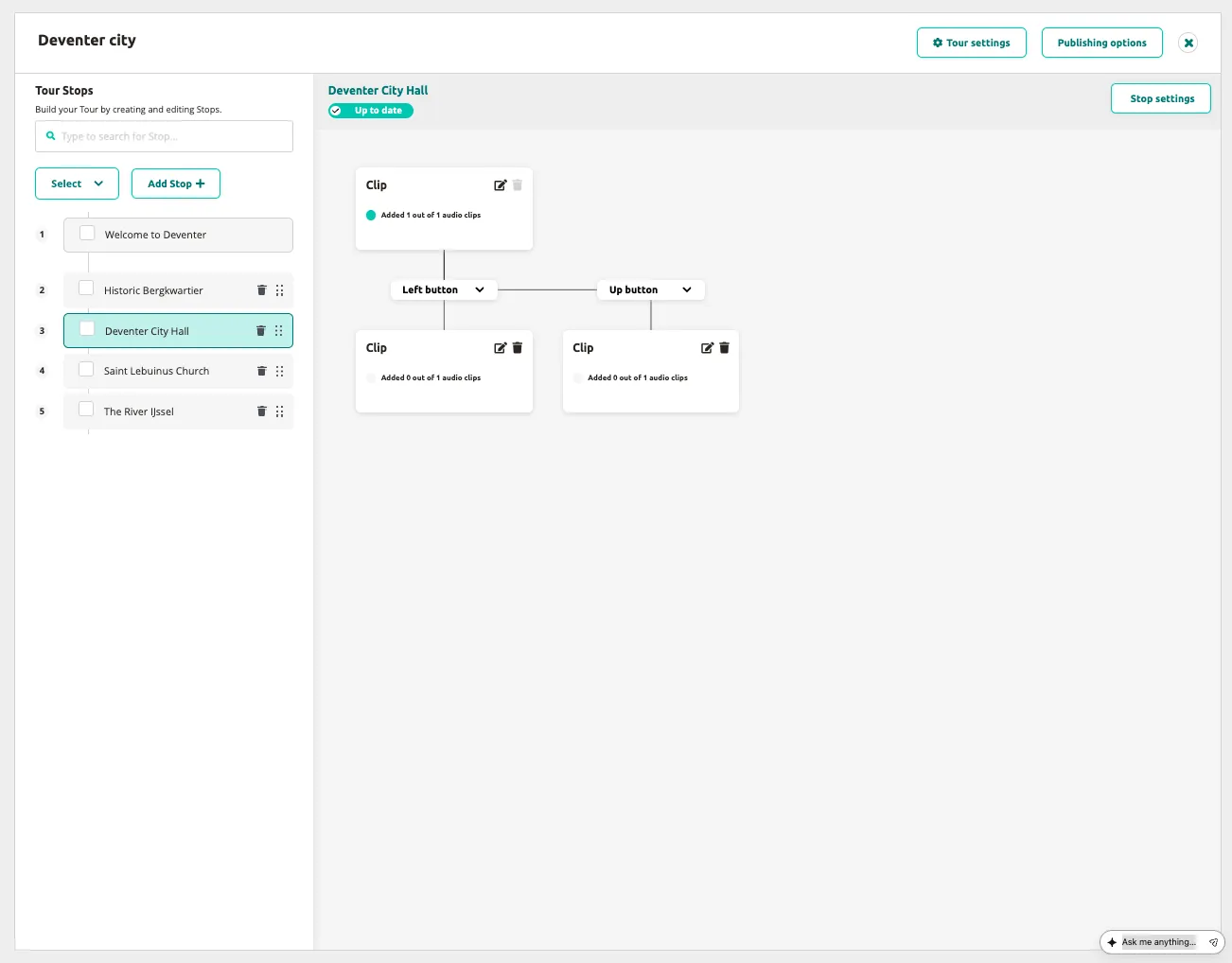
Each time a clip starts, the Brainbox sends a frame with the corresponding Interactive Clip Id — regardless of how the clip was triggered.
BLE frame types
Section titled “BLE frame types”All frames arrive as CSV lines over serial. The first field (version byte) determines the frame type.
Tracking V2 — version 66 (0x42)
Section titled “Tracking V2 — version 66 (0x42)”Sent approximately once per second for each device in range. Use this for real-time visitor position tracking, battery monitoring, and button state.
66,pp009071,0xA1B2C3D4E5F60718,1001,150,3700,0x0004,0x0000| # | Field | Type | Example | Description |
|---|---|---|---|---|
| 0 | version | decimal | 66 | Always 66 |
| 1 | deviceSerial | string | pp009071 | Podcatcher serial number (pp + 6 digits) |
| 2 | visitorId | hex | 0xA1B2C3D4E5F60718 | 16 hex chars (8 bytes) — 0x0000000000000000 = idle |
| 3 | clipIdUser | decimal | 1001 | Interactive Clip Id of last activated clip (0 = none) |
| 4 | lastTriggerDistance | decimal | 150 | UWB distance in cm (0 = no trigger) |
| 5 | batteryMv | decimal | 3700 | Battery voltage in mV |
| 6 | keysLast | hex | 0x0004 | Last pressed buttons (bitmask) |
| 7 | keysHeld | hex | 0x0000 | Currently held buttons (bitmask) |
Button bitmasks
Section titled “Button bitmasks”| Bit | Hex | Button | Description |
|---|---|---|---|
| 0 | 0x0001 | Down | Button down |
| 1 | 0x0002 | Right | Button right |
| 2 | 0x0004 | Center | Button center |
| 3 | 0x0008 | Up | Button up |
| 4 | 0x0010 | Left | Button left |
| 12 | 0x1000 | Volume Up | Increase volume one step |
| 13 | 0x2000 | Volume Down | Decrease volume one step |
Interactive V1 — version 161 (0xA1)
Section titled “Interactive V1 — version 161 (0xA1)”Sent every time a clip starts playing on a Podcatcher — whether triggered by a beacon scan, UWB auto-trigger, or clip flow navigation. Each frame tells you:
- Which device triggered (
deviceSerial) - Which visitor is using it (
visitorId— unique per session) - Which language they selected (NL, EN, DE, FR, ES, IT)
- Which clip was triggered (
clipIdUser— the Interactive Clip Id configured in the CMS) - Which armed code was set by the Podcatcher (
requestedVideoCode— usually an AV-Sync video code) - How many triggers this visitor has had so far (
sequence)
161,pp009071,A1B2C3D4E5F60718,2005,EN,7,0x0000001A| # | Field | Type | Example | Description |
|---|---|---|---|---|
| 0 | version | decimal | 161 | 161 or 160 (both accepted) |
| 1 | deviceSerial | string | pp009071 | Podcatcher serial number |
| 2 | visitorId | hex | 0xA1B2C3D4E5F60718 | Visitor ID (unique per session) |
| 3 | clipIdUser | decimal | 2005 | Interactive Clip Id of triggered clip |
| 4 | language | string | EN | 2-character language code from the trigger file (NL, EN, DE, FR, ES, IT) |
| 5 | sequence | decimal | 7 | Counter that increments per trigger, rolls over after 255 |
| 6 | requestedVideoCode | hex | 0x0000001A | Armed code — usually an AV-Sync video code (0x00000000 = none) |
Example: interactive display scenario
Section titled “Example: interactive display scenario”A visitor walks past an interactive display with their Podcatcher. The display receives:
161,pp009071,0xA1B2C3D4E5F60718,2005,EN,7,0x0000001AThe display now knows instantly:
- Visitor
0xA1B2C3D4E5F60718→ recognizable at the next display too - Language is English → show English subtitles or text
- Clip 2005 → play the matching animation
- Armed code
0x1A→ play the AV-Sync video assigned to this stop - Trigger #7 → visitor has been active for a while, adapt content accordingly
Use cases for interactives
Section titled “Use cases for interactives”Automatic language adaptation The visitor selects their language on the Podcatcher. Every display in the museum adapts automatically — no touchscreen or language button needed on the display itself.
Visitor recognition across rooms
The visitorId persists throughout the entire visit. A visitor triggers a display in room A, then walks to room B — the display there recognizes the same visitorId and can personalize: “Welcome back, you previously saw…” No login or QR scan required.
Interactive projections and animations
A Podcatcher comes in range → the projection starts automatically. Multiple visitors at once? Your application sees all active visitorId values in the zone and can adapt content to the number of visitors (solo experience vs. group experience).
AV-sync with external displays
When a visitor triggers a stop, the Podcatcher arms a code (usually an AV-Sync video code). This requestedVideoCode is sent via the interactive frame. The connected display matches the armed code and plays the corresponding content — no additional hardware (tablet, touchscreen) needed.
Debugging interactive installations
Section titled “Debugging interactive installations”When developing an interactive installation, use a serial monitor to:
- Live debug: See frames arriving in real time as you stand in front of the display
- Test language switching: Change language on the Podcatcher, verify the display reacts
- Check timing: Frames arrive within 1 second of the beacon trigger
- Multi-visitor testing: Test with 2–3 Podcatchers simultaneously and observe all
visitorIdvalues
Related articles
Section titled “Related articles”- Understanding the Brainbox — what the Brainbox does and how it works
- AV-Sync Setup — configure synchronized audio-visual playback