Message Center
The Message Center displays all notifications regarding “actionable insights,” which typically indicate that the museum needs to take action to resolve something.
Notification Structure
Section titled “Notification Structure”Each notification contains:
- Color bar (left side) — Indicates severity level
- Icon — Shows the notification type
- Message text — Describes the issue and what needs to be done
- Date — When the notification was created (bold if unread)
- X button — Dismisses the notification
Severity Levels
Section titled “Severity Levels”- Green — Low severity; informational with no immediate action required
- Orange — Medium severity; action required but not immediately
- Red — High severity; immediate action required
Message Organization
Section titled “Message Organization”Messages are organized into two sections separated by a line:
- Top section: New (unread) messages since last visit
- Bottom section: Previously read messages
Messages are automatically marked as read when you load the Message Center page. You can dismiss individual notifications by clicking the X button, which also stops email reminders for that notification.
Notification Updates
Section titled “Notification Updates”The platform checks for new notifications every 15 minutes. The message center icon in the navigation bar updates to display the current notification count.
Supported Notifications
Section titled “Supported Notifications”Beacon Battery Low
Section titled “Beacon Battery Low”Triggered per beacon when low battery is detected:
- Beacon Lite — Battery replacement needed
- Beacon Pro — Charging required
- Beacon Lite Waterproof — Entire unit replacement needed (non-replaceable battery)
- IDentifier — Battery replacement needed

This notification is removed when the beacon is deleted from the Hardware > Beacons page.
Podcatcher Error
Section titled “Podcatcher Error”Appears per Podcatcher when the device enters error status. The Podcatcher may need to be returned for repair. See Returning Equipment for details.
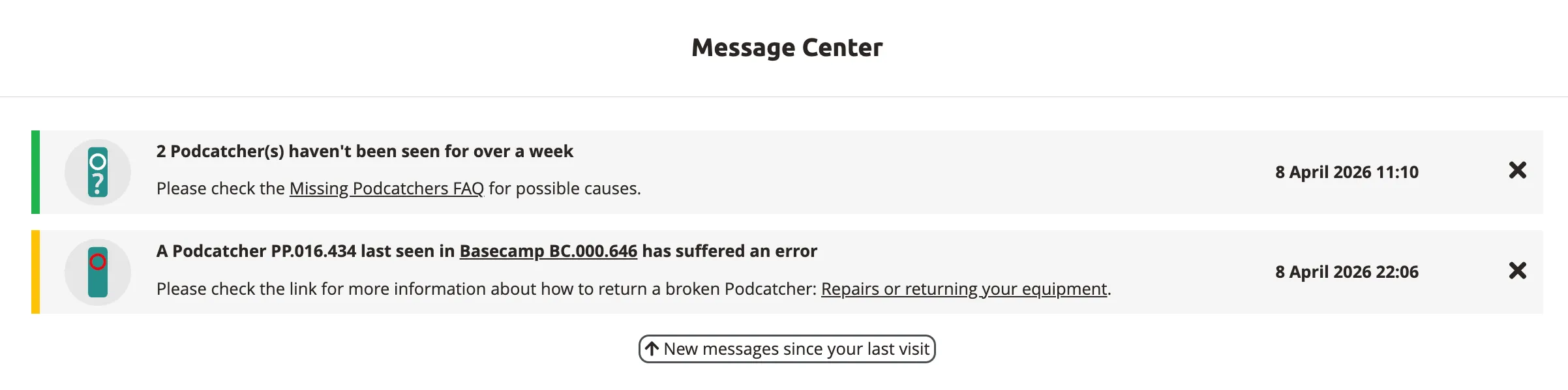
The notification updates if the Podcatcher moves to a new Basecamp and is automatically removed once the device returns to healthy status.
Basecamp Offline
Section titled “Basecamp Offline”Displays per Basecamp when the device has been offline for 24 hours or more. Check the following:
- Power connection — Verify the power cable is connected and the outlet is active
- Network connection — Verify the Ethernet or Wi-Fi connection is working
The notification is automatically removed when the Basecamp comes back online.
Lost Podcatcher
Section titled “Lost Podcatcher”Shows the total count of Podcatchers that have not been seen for over a week. If an alarm beacon is set up at your venue, check that it is functioning correctly — lost Podcatchers should trigger the alarm when leaving the premises.
The notification is removed when a previously lost Podcatcher is detected again.
No Notifications
Section titled “No Notifications”When there are no active notifications, all systems are functioning properly.
Related articles
Section titled “Related articles”- Actionable Insights — how the notification system works
- Hardware Notifications — configure email alerts
- Hardware Management — monitor all hardware status