How-to guide
Activate PWA
Enable the PWA (Progressive Web App) for your tour so visitors can access audio content directly on their mobile devices.
- Go to Tours > My Tours in the Platform.
-
Select the tour you want to activate for PWA.
-
Click
Tour Settingsin the top-right corner.
- In Tour Settings, go to the Devices section and select PWA to enable it for this tour.
-
Click
Saveat the bottom right to apply the change. -
Copy or download the QR code from the Tour Settings page, or find it via Site Settings > PWA.
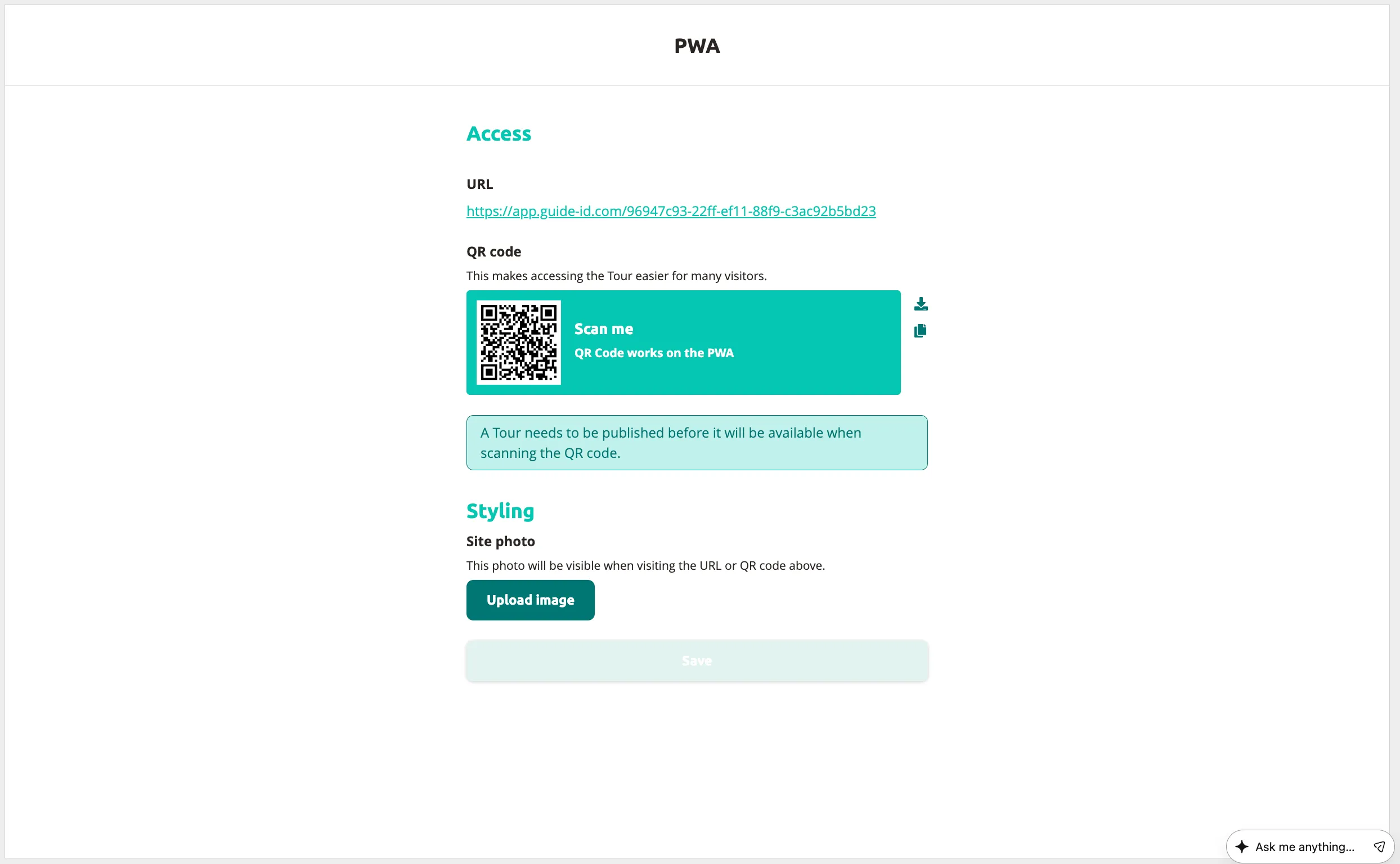
The PWA is now active for your tour and visitors can access it by scanning the QR code.
Visitor Experience
Section titled “Visitor Experience”When a visitor scans the QR code with their mobile phone:
- They see a safety notice recommending headphones and awareness of their surroundings.
- If multiple tours have PWA activated, they can select which tour to listen to.
- They choose their preferred language (based on the languages available for the tour).
- They select a stop and listen to the audio content.
Next: Configure PWA Access Settings
Related articles
Section titled “Related articles”- PWA Access — configure QR codes, cover images, and sign language
- Publishing a Tour — make your tour live for visitors
- Tips and Tricks — complete PWA checklist before going live
- Adding Images to Stops — add visuals for the PWA experience
Was this article helpful?