Hearing Accessibility
This guide helps front-of-house staff assist visitors who use hearing aids, cochlear implants, or personal Bluetooth headsets with the Podcatcher Pro.
Neckloop with hearing aid (T-coil)
Section titled “Neckloop with hearing aid (T-coil)”A neckloop is a thin wire loop worn around the neck that transmits audio from the Podcatcher Pro directly to a visitor’s hearing aid via a magnetic signal. This is the most reliable method for hearing aid users.
Connect and set up
Section titled “Connect and set up”-
Insert the neckloop’s 3.5 mm plug into the headphone jack of the Podcatcher Pro. Make sure it clicks in fully.
-
Ask the visitor to drape the loop around their neck, resting it on the shoulders. The loop should hang as wide and flat as possible — do not bunch or twist the cable.
-
The visitor switches their hearing aid to the T (telecoil) or MT (microphone + telecoil) setting:
- Physical switch: look for positions labeled M, T, or MT
- Program button: press the button to cycle through programs until the telecoil program is reached (often confirmed by a beep)
- Smartphone app: select the telecoil program in the hearing aid manufacturer’s app (e.g. Phonak, ReSound, Oticon)
-
Set the Podcatcher Pro volume to approximately 50% (mid-range). Ask the visitor to leave their hearing aid at its normal volume.
-
Play a test clip and ask the visitor if the audio is clear. If they hear buzzing or humming, try moving away from overhead lighting, security gates, or display screens.
Troubleshooting
Section titled “Troubleshooting”| Problem | Cause | Solution |
|---|---|---|
| No sound | Plug loose or T/MT mode off | Re-seat plug; check hearing aid mode |
| Weak sound | Loop too low on body | Raise loop to ear level; turn up volume |
| Buzzing | EM interference (lights, wiring) | Step away from lights or security gates; offer headphones if it persists |
| Distortion | Volume too high | Lower Podcatcher Pro volume |
| “No T-coil setting” | T-coil missing or not activated | Offer standard headphones instead |
Bluetooth headset pairing (BLE)
Section titled “Bluetooth headset pairing (BLE)”The Podcatcher Pro supports Bluetooth Low Energy (BLE) audio pairing with standard wireless headsets and earbuds. This is useful for visitors who prefer their own personal headphones.
Pairing process
Section titled “Pairing process”The Podcatcher Pro does not have a screen, so Bluetooth pairing works differently than on a phone:
-
Use the Podcatcher Pro to scan the pairing Beacon. The Smart Circle turns blue/purple, indicating the Podcatcher Pro is now in pairing mode.
-
Ask the visitor to activate pairing mode on their headset or earbuds (typically hold the power button until the LED flashes blue/white).
-
Keep the headphones close to the Podcatcher Pro until pairing completes. A confirmation tone plays through the headset.
-
Audio now plays through the visitor’s Bluetooth headset instead of the built-in speaker.
-
When the visitor returns the Podcatcher Pro to the Basecamp, the Bluetooth connection disconnects automatically — no manual disconnect needed.
Troubleshooting
Section titled “Troubleshooting”| Problem | Cause | Solution |
|---|---|---|
| Won’t connect | Not in pairing mode or too far | Check headset LED flashes; bring closer |
| Wrong headset paired | Another headset was closer | Disconnect; retry with one headset only |
| Audio drops/stutters | Out of range or interference | Stay within 5-10 m; avoid busy RF areas |
| Hearing aid won’t connect | Proprietary protocol, not BLE | Use neckloop method instead |
Best practices
Section titled “Best practices”Display the hearing loop symbol. Place the international hearing loop sign at all audio guide distribution points and at the entrance.
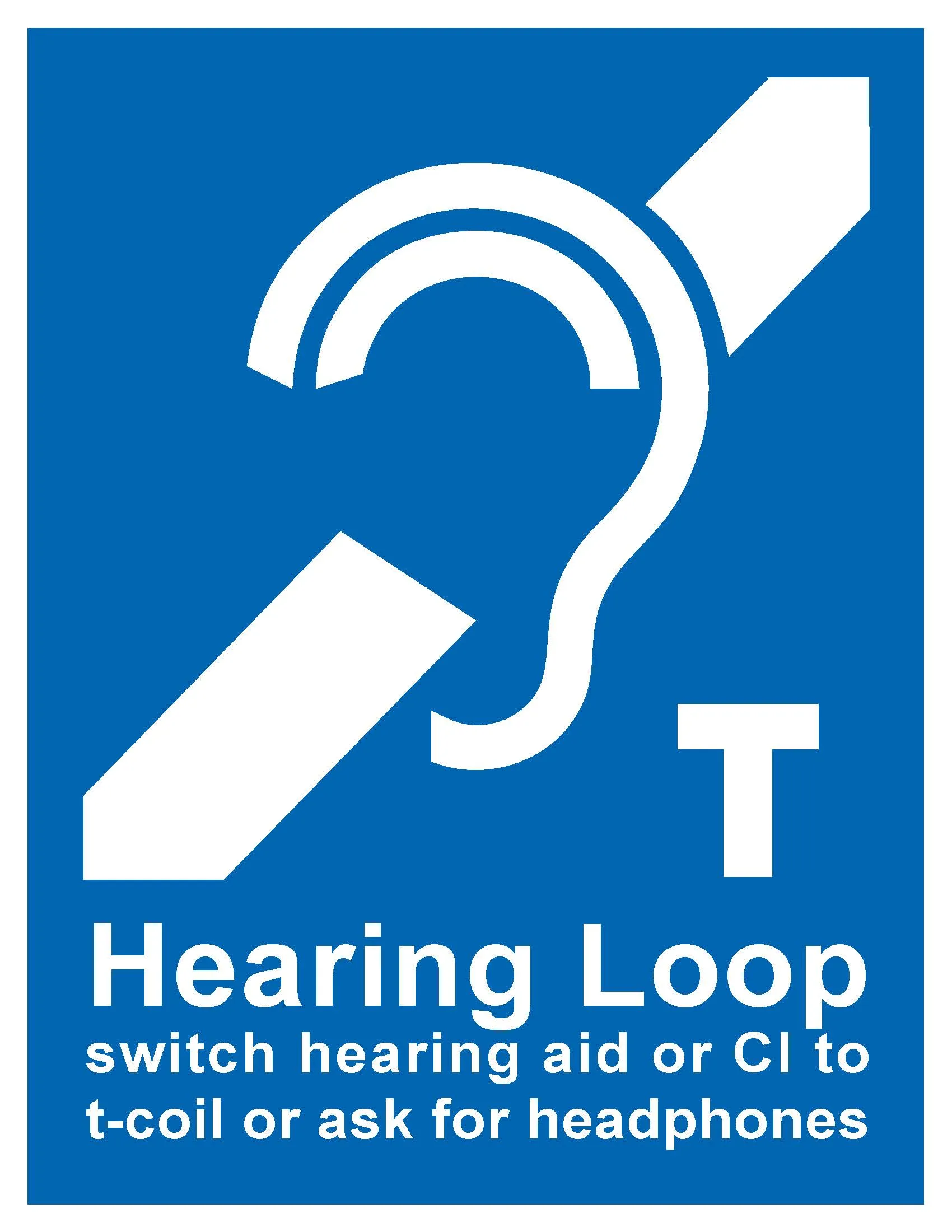
Proactively offer the neckloop. When handing out audio guides, ask: “Do you use a hearing aid? We have neckloops available that connect directly to your hearing aid.”
Keep spare neckloops available. Test neckloops regularly and replace any with damaged cables or loose plugs.
Always have standard headphones as a fallback. Over-ear headphones with good passive noise isolation can be a practical alternative for visitors who cannot use a neckloop or Bluetooth headset.
Train all front-of-house staff. Every team member who distributes audio guides should know both connectivity options and when to offer which solution.
Related articles
Section titled “Related articles”- How to Connect Headphones/Earbuds via Bluetooth — Beacon-based Bluetooth pairing setup
- What is Podcatcher Pro? — device overview and key features
- Podcatcher Pro Datasheet — full technical specifications