Quick Start Guide
This guide takes you from unboxed hardware to a working audio tour in four stages. Each stage links to detailed articles if you need more information.
Stage 1 — Connect your Basecamp
Section titled “Stage 1 — Connect your Basecamp”The Basecamp is the central hub that charges Podcatcher Pro devices and syncs tour content.
-
Place or mount the Basecamp near a power outlet and network port.
-
Connect the 65W power adapter and an Ethernet cable.
-
Verify the power LED shows green and the third LED (network) turns green.
-
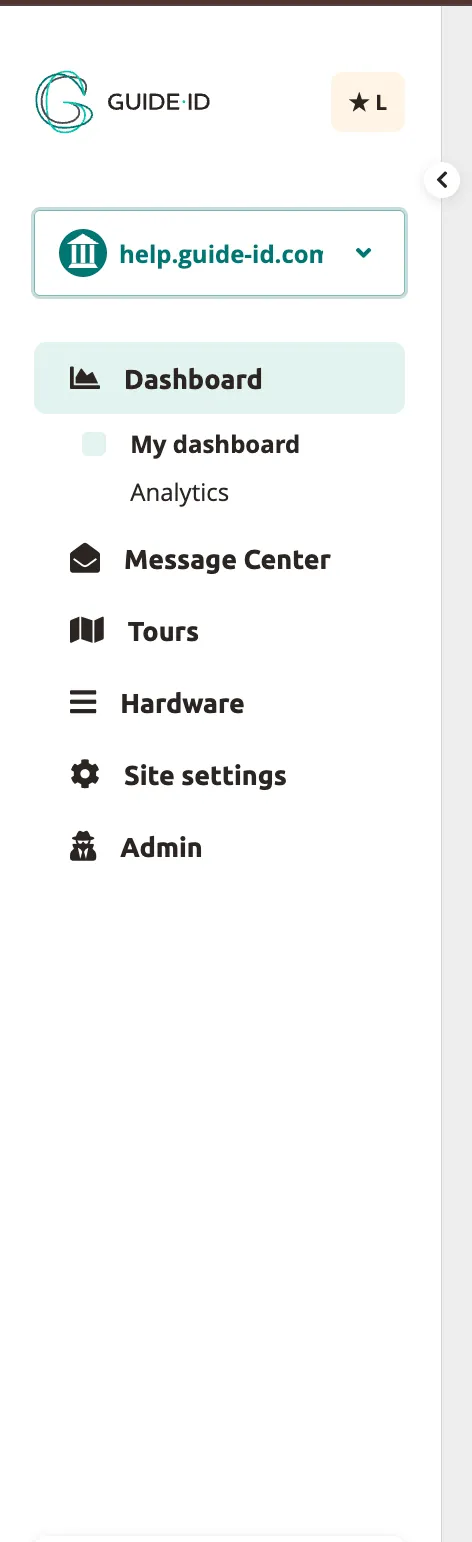
In the Platform, go to Hardware → Basecamps and click Add Basecamp.
- Enter the serial number and link key from the device label, set the daily sync time, and click Finish.
Detailed guide: Basecamp Installation
Stage 2 — Register your Beacons
Section titled “Stage 2 — Register your Beacons”Beacons trigger audio content when a visitor holds their Podcatcher Pro near them.
-
Go to Hardware → Beacons in the Platform.
-
Click Add new Beacon + and enter the beacon code from each physical device (e.g.
BL.000.001for Beacon Lite,BP.000.001for Beacon Pro). -
Place Beacons at each tour stop location — mount at chest height for best results.
Detailed guides: What is a Beacon? | Adding Beacons
Stage 3 — Create your first tour
Section titled “Stage 3 — Create your first tour”-
Go to Tours → My Tours and click Create a Tour.
-
Choose Standard audio Tour (or AI Generated audio Tour to let AI create content for you).
-
Enter a tour name, select target devices (Podcatcher Pro, PWA, or both), and pick the main language.
-
Click Create Tour. A Start Stop is automatically created.
Detailed guide: Create a Tour
Stage 4 — Add content and Beacons to stops
Section titled “Stage 4 — Add content and Beacons to stops”-
Click a stop in the stop list and enter your script text.
-
Click Text to Speech, select a voice, and click Generate to create audio. Or upload a pre-recorded audio file.
-
Open Stop settings and link a Beacon to each stop by entering the beacon code.
- Repeat for each stop in your tour.
Detailed guides: Adding Content | Text-to-Speech | Editing Clips
What’s next
Section titled “What’s next”Your tour has content and Beacons. Before going live, run through the Go Live Checklist to verify everything works.
Related articles
Section titled “Related articles”- Using the Tour Editor — build branching Clipflows
- Adding Layers to a Tour — add quizzes and surveys
- Activate PWA — enable mobile web access
- Hardware Management — monitor device status