Podcatcher LEDs
Podcatcher Pro devices received for repair often lack proper descriptions of issues, and some returned players appear to function normally. Guide-ID checks all Podcatcher Pro devices for error messages and physical damage, though this process requires time.
Troubleshooting before returning a device
Section titled “Troubleshooting before returning a device”Before returning a device, you should:
- Verify the Basecamp is online.
- Check for errors in the Basecamp’s sync history overview.
Physical damage, distorted sound, or rattling noises indicate hardware faults requiring replacement rather than synchronization fixes.
Best practices for hardware maintenance
Section titled “Best practices for hardware maintenance”To prevent error messages and optimize performance:
- Return Podcatcher Pro devices to Basecamp after each use for charging.
- Properly seat devices in slots when docking.
- Return all units to Basecamp at the end of the day for overnight charging and synchronization.
- Synchronize new Podcatcher Pro devices before initial use, including replacements.
- Test problematic units in different Basecamp slots to isolate issues.
- Keep Basecamp active 24/7 with a continuous internet connection.
Smart Circle color status indicators
Section titled “Smart Circle color status indicators”The Smart Circle (the LED ring) shows the Podcatcher Pro’s state through colour. For day-to-day maintenance the first three colours are what you’ll usually see:
| Color | Meaning | What to do |
|---|---|---|
| Green | Ready, charged, or playing normally | Nothing — the device is healthy |
| Orange | Synchronizing or not fully charged | Leave it docked in the Basecamp |
| Red | Error or hardware fault | Return to Guide-ID for repair |
The Smart Circle also uses these colours during specific modes:
| Color | Mode |
|---|---|
| Blue | Bluetooth pairing in progress — see Bluetooth Headset |
| Magenta | Pronounce mode (service / diagnostics) — see Pronounce Mode |
| Purple | Config mode (service) — re-dock the device to exit |
| Rotating multi-colour | Group tour or shared experience active |
| Flashing red and blue | Alarm — the device is leaving the venue; return it to a Basecamp |
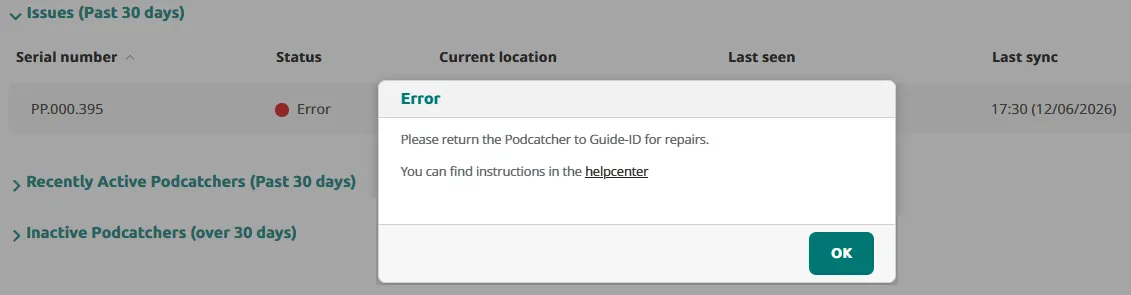
You can monitor Podcatcher Pro status through the Hardware > Podcatchers overview, where clicking a status reveals detailed instructions.
Related articles
Section titled “Related articles”- Podcatcher Overview — monitor device status in the Platform
- Cleaning Podcatchers — safe cleaning methods and tips