Platform
Managing Your Profile
Update your personal information, change your password, and control which email notifications you receive from the Platform.
Accessing your profile
Section titled “Accessing your profile”-
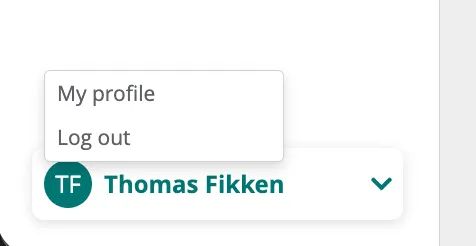
Click your profile icon (avatar) in the top-right corner of the Platform.
-
Select
My Profilefrom the dropdown menu.
Editing personal details
Section titled “Editing personal details”- In the Personal section, update your name and other personal information as needed.
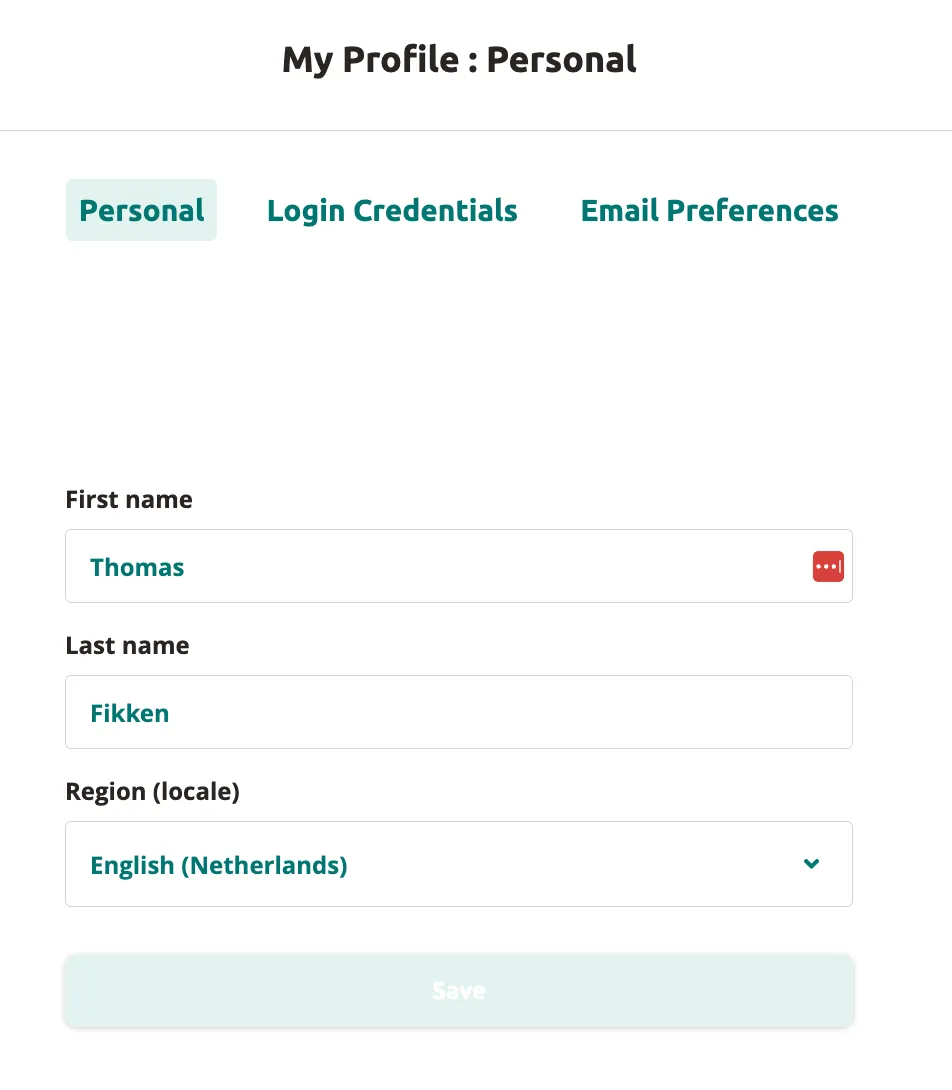
- Click
Saveto apply your changes.
Changing your password
Section titled “Changing your password”-
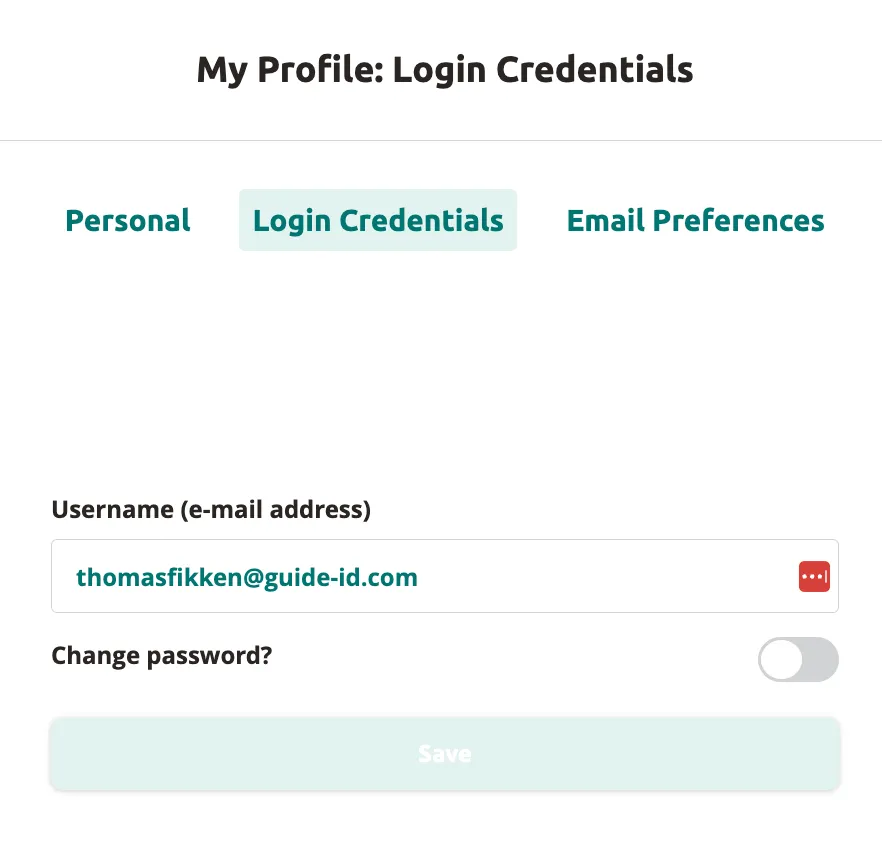
Click the Login Credentials tab.
-
Click the
Change password?toggle below your username. -
Follow the prompts to set a new password.
Configuring email preferences
Section titled “Configuring email preferences”-
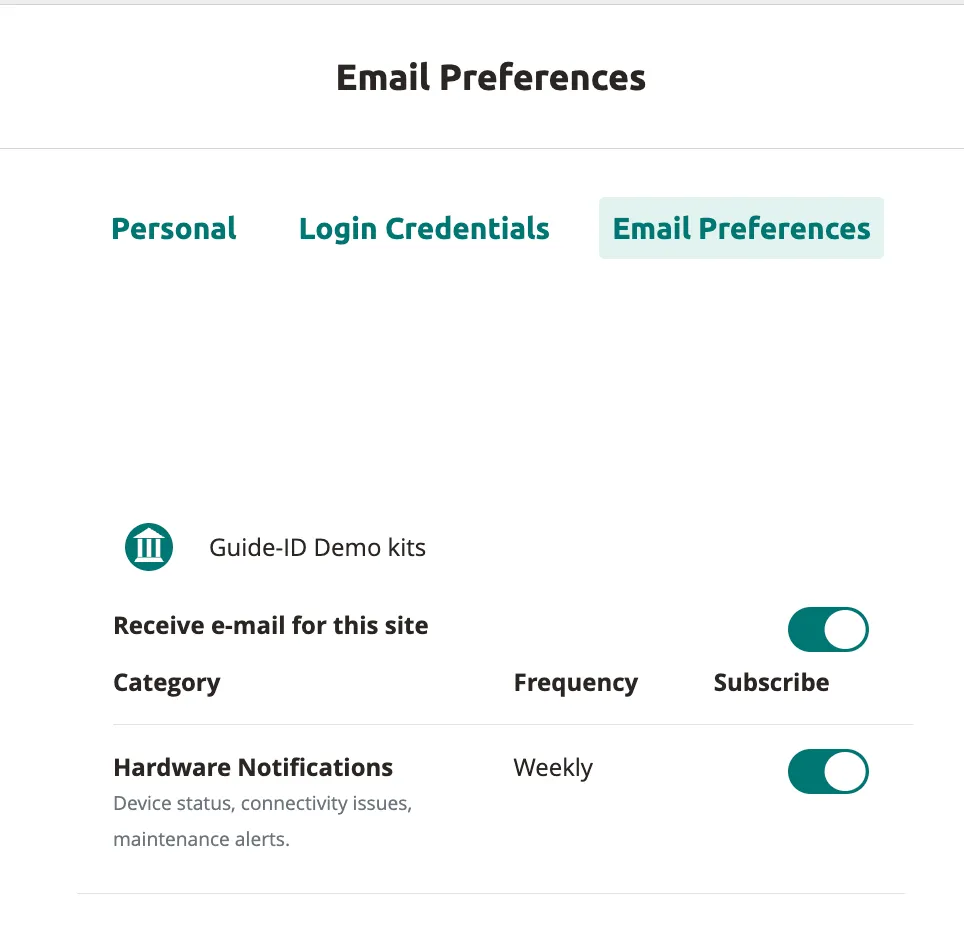
Click the Email Preferences tab.
-
Use the Receive e-mail for this site master toggle to enable or disable all email notifications for a specific site.
-
Under Hardware Notifications, toggle the subscription on or off to receive weekly emails about device status, connectivity issues, and maintenance alerts.
Your profile settings are now updated.
Related articles
Section titled “Related articles”- Adding Team Members — invite colleagues to your site
- General Site Settings — manage site name and location
Was this article helpful?