Platform
Adding Members to Your Team
Invite team members to your Guide-ID site so you can collaborate on tour creation, publishing, synchronization, and insights.
- Go to Site Settings in the left-hand menu.
- Click
Teamto open the team management page. You will see a list of all current team members.

- Click
Add new teammate.
- Enter the team member’s first name, last name, and email address in the pop-up form. Optionally, assign one or more Functions using the dropdown.
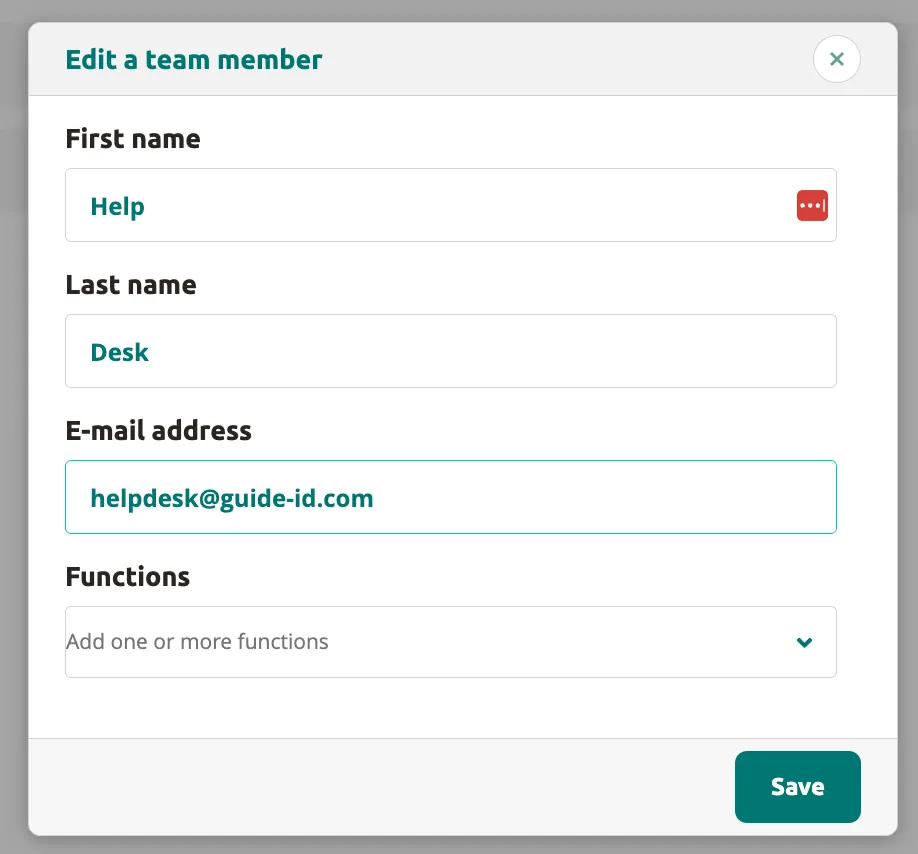
- Click
Saveto send the invitation.
The new team member will receive an email:
- New users receive an invitation to create a Guide-ID account. Once they complete registration, they are automatically added to your site.
- Existing users receive a notification that they have been added to your site and can log in immediately.
Your team member now has access to your site and can view tours, hardware, and insights.
Related articles
Section titled “Related articles”- My Profile — update your personal details and password
- General Site Settings — manage site name and location
Was this article helpful?