Generate Content Using AI
The AI functionality in the Platform allows you to generate content quickly and effectively using predefined prompts. This tool utilizes advanced algorithms to enhance or modify your script based on specific needs, such as simplifying text, adjusting the tone, or translating it into another language.
Step-by-Step Guide
Section titled “Step-by-Step Guide”-
Open a Stop: Begin by selecting a stop within an existing or new tour for which you want to generate or modify content.
-
Fill in the Script Field: Enter the text you want to use or modify in the script field. This can be a short snippet or a longer piece of text.
-
Click “Ask AI”: After entering your text, click the “Ask AI” button to activate the AI functionality.
-
Choose a Predefined Prompt: A dropdown menu with various predefined prompts will appear. These prompts range from making the text child-friendly, shortening it, simplifying it, adjusting the tone, to translating the script.
-
Select a Prompt: Choose a prompt that aligns with the purpose of your modification. The chosen prompt determines how the AI will edit your text.
-
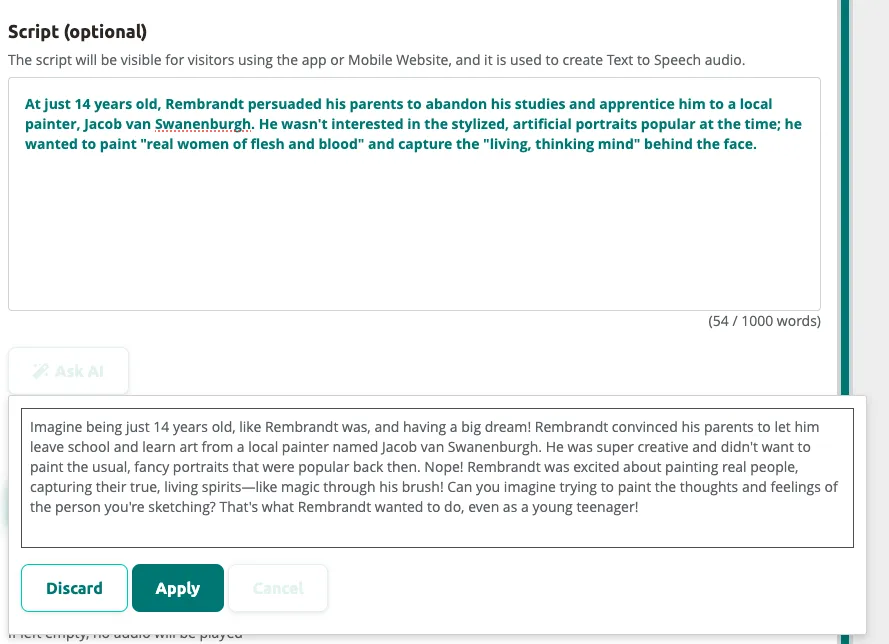
View the AI Output: Once you’ve selected a prompt, the AI generates a new version of your text in real-time, which automatically appears on the screen.
-
Review and Decide: Wait for the AI to finish generating the text. Then, review the generated content and decide whether to keep it or not.
-
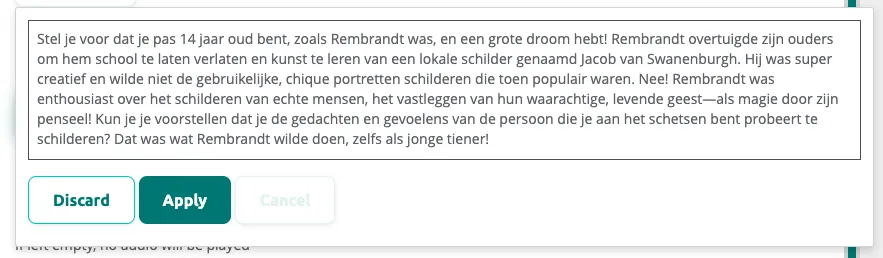
Use “Discard” or “Apply”: If you decide not to use the AI-generated text, click “discard.” This will remove the new text, retaining the original. If you want to use the AI-generated text, click “apply,” replacing the original text with the AI-generated one.
How Can I Use AI?
Section titled “How Can I Use AI?”After selecting “Ask AI” on the platform, you’ll see various prompts to help adjust your text. These options are categorized into three groups: Rewrite, Change tone, and Translate.
Rewrite
Section titled “Rewrite”- Kids friendly: Rewrites text to appeal to children aged 7 to 12, using simple and positive language with short sentences and repetition.
- Make shorter: Shortens text by approximately 33% while preserving essence and key themes.
- Simplify: Simplifies text for readers with basic language knowledge (B1 level CEFR), using straightforward language and sentence structures.
Change tone
Section titled “Change tone”- Casual: Adapts text to an informal, casual tone for relaxed and accessible museum audio tours.
- Confident: Rewrites text to reflect a confident tone, conveying authority and expertise.
- Friendly: Adjusts text to a friendly tone, creating a warm and inviting atmosphere.
- Professional: Converts text to a professional tone, suitable for formal and authoritative approaches.
- Straightforward: Makes text direct and uncomplicated for clear communication.
Translate
Section titled “Translate”- Translate: Can be used in two ways:
- If you have entered text in the main language of the tour, navigate to translations and click “translate” to translate into the language of the tab.
- You can manually enter text in the script field and click “translate” to convert it into the language of the tab.
Related articles
Section titled “Related articles”- Text-to-Speech — convert scripts to natural audio
- Creating Tours Using AI — generate complete tours with AI