Sleep Beacon
A Sleep Beacon puts a Podcatcher Pro into sleep mode as soon as the device picks up its signal. Placed at the return point, it lets returned devices pass an alarm zone in silence on their way back to the Basecamp. This page explains what a Sleep Beacon does, how to set one up in the Platform, and where to place it.
What a Sleep Beacon does
Section titled “What a Sleep Beacon does”- A Podcatcher Pro that picks up a Sleep Beacon goes to sleep within seconds. The LED ring turns off and the device plays no audio.
- While asleep, the device ignores every beacon, including the alarm beacon. A sleeping device cannot set off an alarm.
- If the alarm is already sounding, the Sleep Beacon stops it.
- The device wakes up when it is docked in the Basecamp, or when a button is pressed. After a button press, the device continues the tour where it stopped.
- A Sleep Beacon has no other function. It cannot be linked to a stop at the same time.
Which beacon to use
Section titled “Which beacon to use”| Beacon | How it triggers | Trigger distance |
|---|---|---|
| Beacon Lite or Beacon Lite Waterproof | Bluetooth | About 15 cm, fixed |
| Beacon Pro | UWB | Set in the Platform, from 15 cm to 10 m (default 3 m) |
With a Beacon Lite, every device has to come close to the beacon. With a Beacon Pro, one beacon can cover a whole return area.
Set up a Sleep Beacon in the Platform
Section titled “Set up a Sleep Beacon in the Platform”Step 1 — Open the Sleep Beacons page
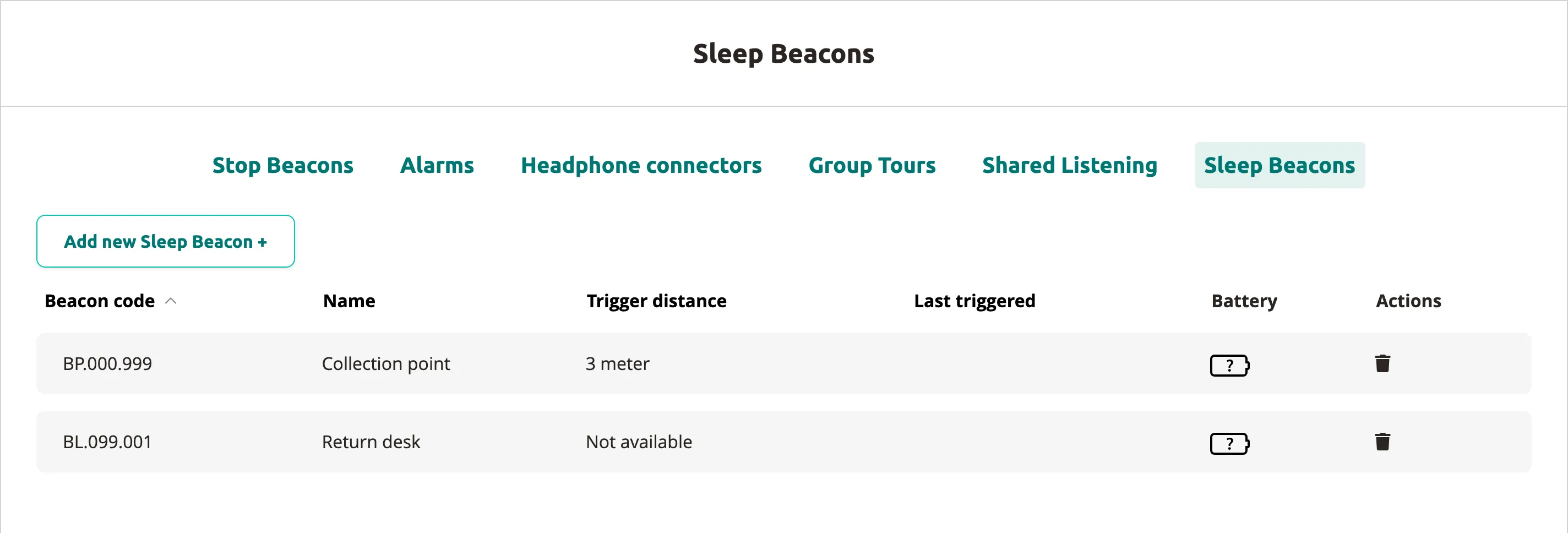
Section titled “Step 1 — Open the Sleep Beacons page”Go to Hardware → Beacons and open the Sleep Beacons tab. The list shows each Sleep Beacon with its Beacon code, Name, Trigger distance, Last triggered and Battery. For a Beacon Lite, the trigger distance shows Not available, because it is fixed.
Step 2 — Add the beacon
Section titled “Step 2 — Add the beacon”-
Click Add new Sleep Beacon +.
-
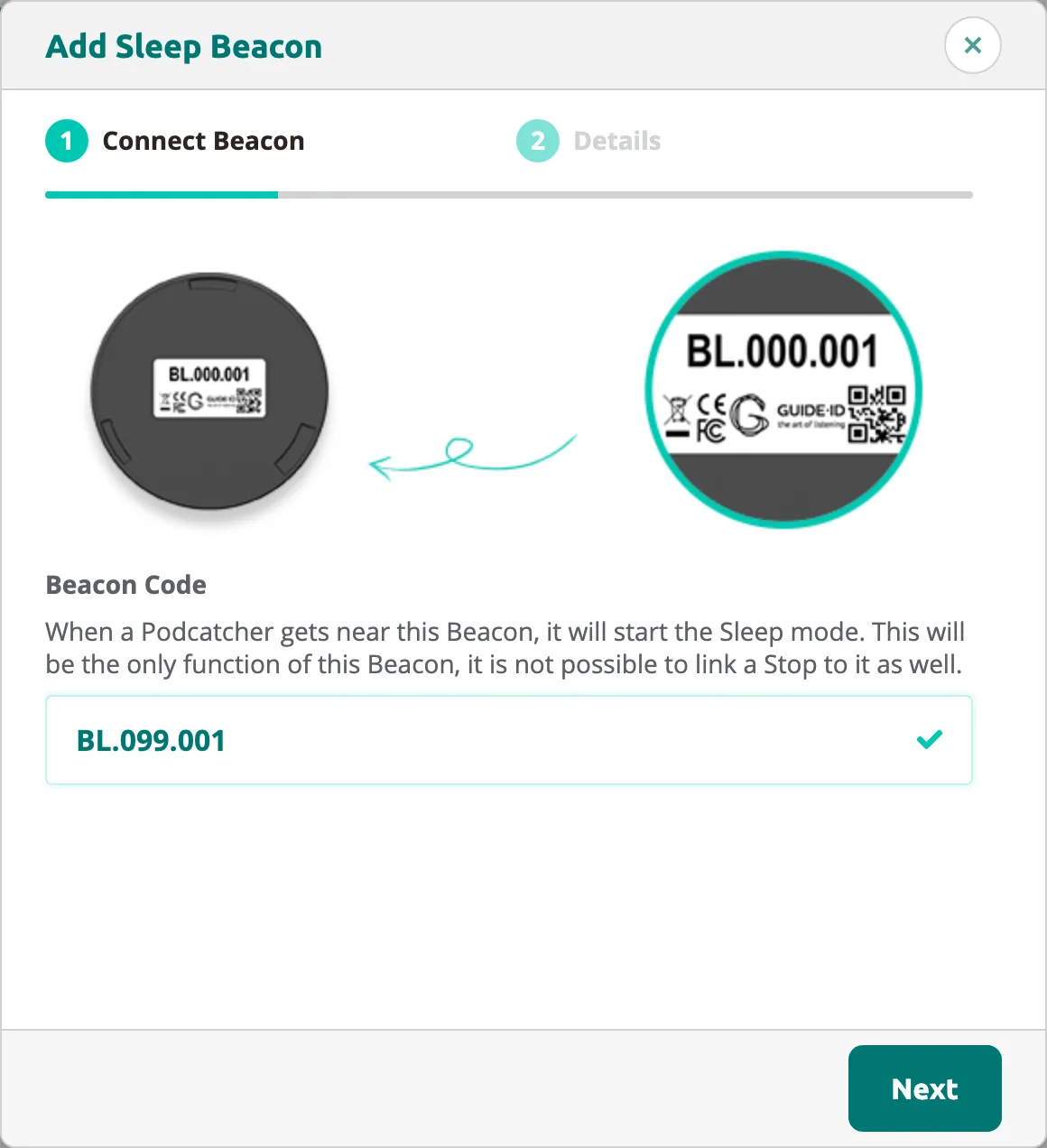
In Connect Beacon, enter the Beacon Code printed on the beacon, for example BL.000.001 or BP.000.001, and click Next.
-
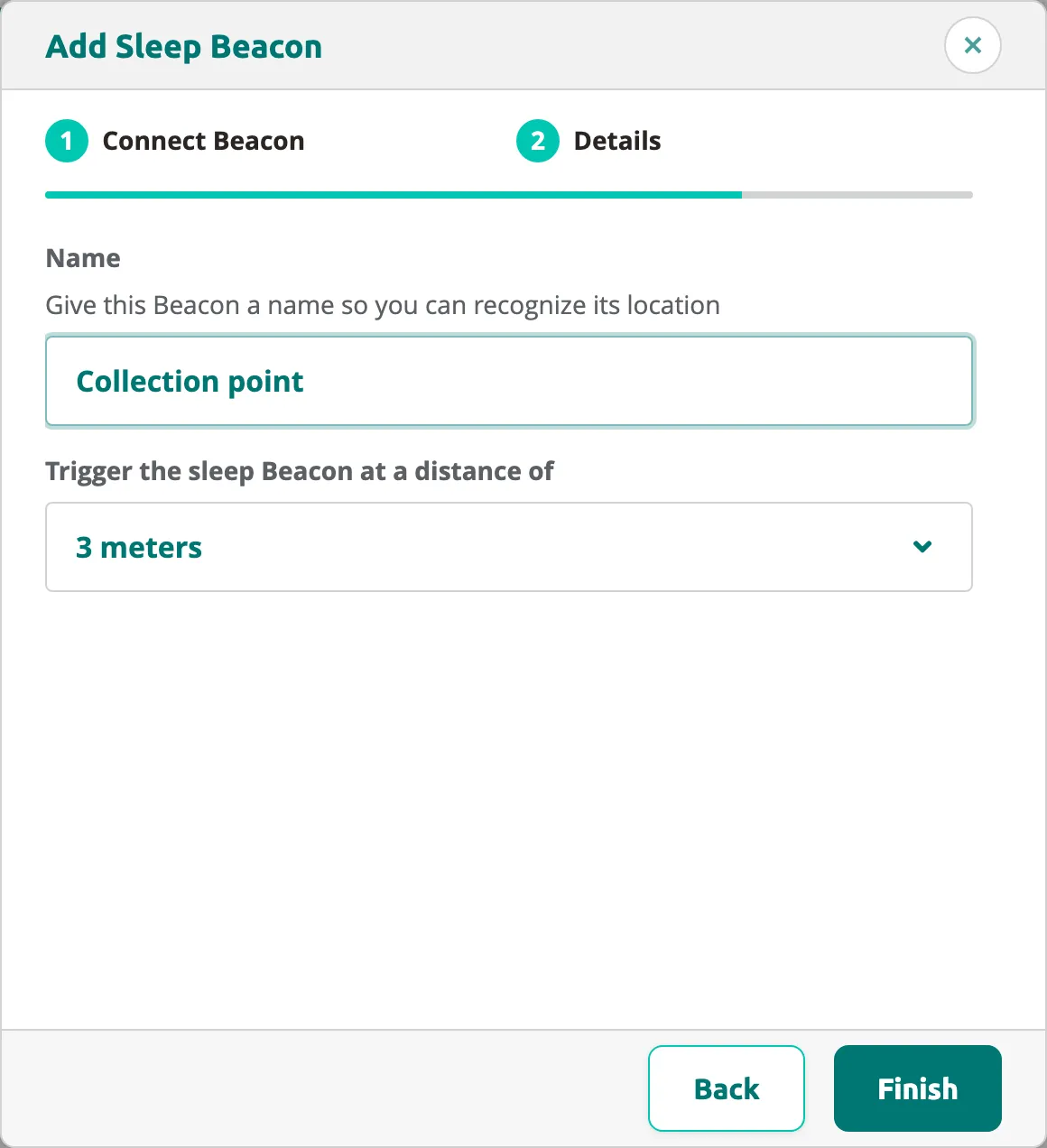
In Details, give the beacon a Name that tells you where it is, for example “Return desk”.
-
For a Beacon Pro, choose the distance under Trigger the sleep Beacon at a distance of.
-
Click Finish.
If the Platform reports that the Beacon Code is already used elsewhere, the beacon is linked to something else, such as a stop. Remove it there first, or use a different beacon.
Step 3 — Sync the change
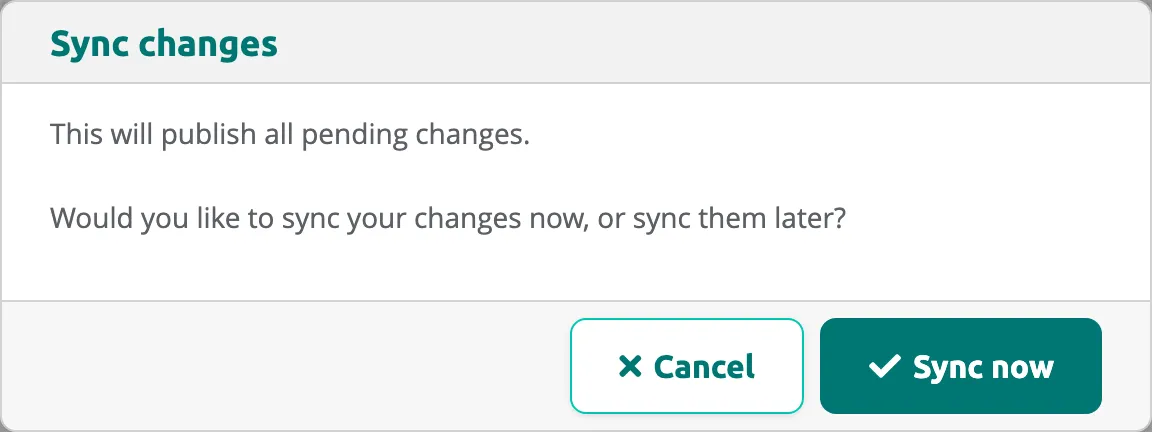
Section titled “Step 3 — Sync the change”After you add a Sleep Beacon, the Platform asks whether to sync now or later; Cancel keeps the change for a later sync. Sync now publishes all pending changes and the Basecamps download them within a minute. The Podcatcher Pro devices in the Basecamp are updated after that download; devices that are out with visitors are updated when they are docked again.
To remove a Sleep Beacon, click the trash icon in the Actions column. The change reaches the devices with the next sync.
Where to place a Sleep Beacon
Section titled “Where to place a Sleep Beacon”The Sleep Beacon works best at a collection point before the alarm zone, on the way back to the Basecamp:
- Visitors return their Podcatcher Pro at the collection point, for example a tray or basket.
- Each device falls asleep there, before it reaches the alarm zone.
- Staff carry the collected devices through the alarm zone to the Basecamp. Sleeping devices stay silent.
- In the Basecamp, the devices wake up, charge and synchronize.
If the Sleep Beacon sits after the alarm zone, visitors walk through the zone first. The alarm then goes off and the Sleep Beacon only stops it.
What to do and what to avoid
Section titled “What to do and what to avoid”Do
- Place the Sleep Beacon before the alarm zone on the return route.
- Give each Sleep Beacon a name that describes its location.
- Check Last triggered and Battery on the Sleep Beacons page now and then.
- Take collected devices straight to the Basecamp.
Avoid
- Placing a Sleep Beacon on the tour route or near a stop. Devices that pass it fall asleep during the tour, and the visitor has to press a button to continue.
- Pressing buttons on collected devices. A device that wakes up reacts to the alarm zone again.
- Handing out collected devices again without docking them. A device that is woken up continues the previous visitor’s tour.
Related articles
Section titled “Related articles”- Alarm — set up alarm zones with Beacon Pro
- Podcatcher Settings — configure alarm and sleep settings
- Beacon Lite Installation — install and position Beacon Lite
- Beacon Pro Installation — install and position Beacon Pro
- Publishing a Tour — how changes reach the Basecamp and the devices